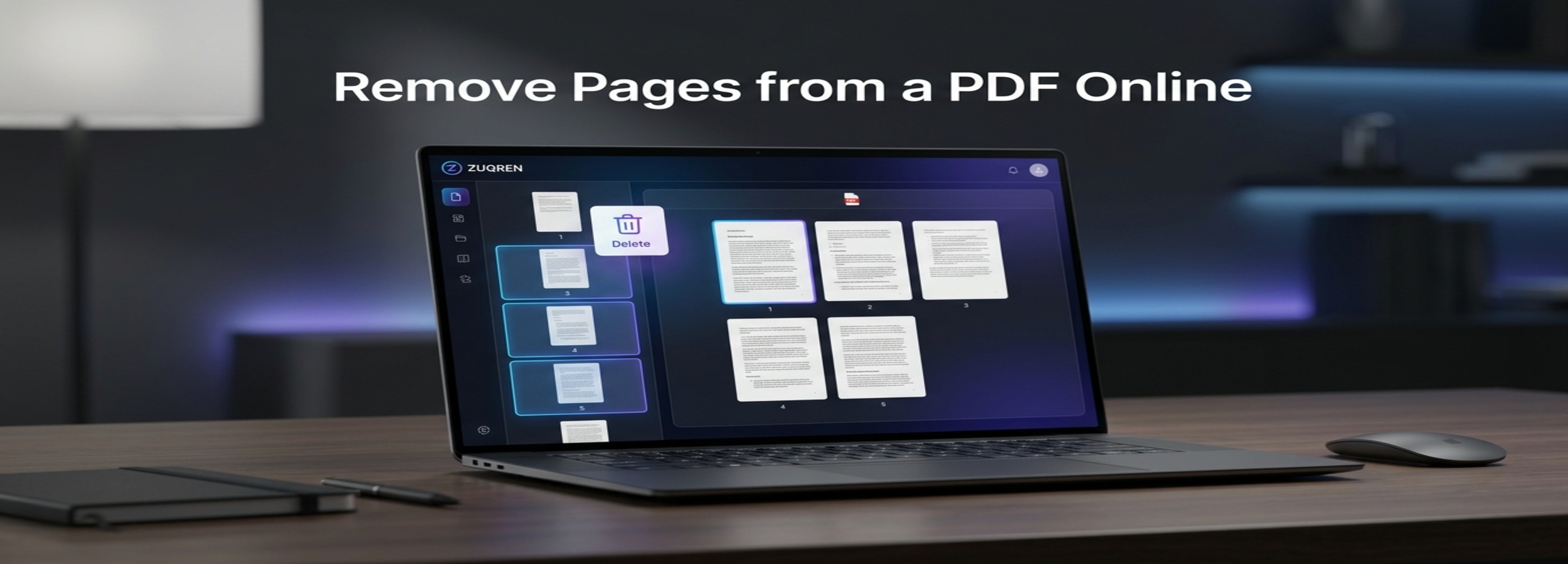
How to Remove Pages from a PDF Online for Free

PDF files are designed to preserve the appearance of a document, but that does not mean every page needs to stay in the final version. You may have downloaded a document with unnecessary pages, scanned several documents into one PDF, added a blank page by mistake, or simply need to send someone a smaller, cleaner version.
The good news is that removing pages from a PDF does not require expensive software or advanced technical skills. With a free online PDF tool, you can usually upload the document, select the pages you want to remove, and download the revised PDF in just a few steps.
This guide explains how to remove pages from a PDF online for free, what happens to the remaining pages, how to handle sensitive documents, and what to do when you need to remove several pages or create a completely new PDF from selected pages.
Why Remove Pages from a PDF?
There are many practical reasons to delete pages from a PDF.
A report might contain draft pages that should not be shared. A scanned document may include blank pages between useful ones. An application package could contain an outdated form. You might also have a large PDF where only a few pages are relevant to the person receiving it.
Removing unnecessary pages can make the document easier to read and share.
For example, imagine you have a 25-page PDF containing:
A cover page
15 pages of useful information
Several outdated pages
A blank scanned page
An appendix that is no longer needed
Instead of sending all 25 pages, you can remove the unwanted pages and keep only the content that belongs in the final document.
This can also reduce the overall file size, although the amount of reduction depends on what the deleted pages contain. A page containing large scanned images may contribute much more to the file size than a simple text page.
Can You Remove Pages from a PDF for Free?
Yes. Free online PDF editors and page-management tools can remove pages without requiring a paid desktop application.
The basic process is usually straightforward:
Open an online PDF page-removal tool.
Upload your PDF.
Wait for the pages to appear as thumbnails.
Select the pages you want to delete.
Remove the selected pages.
Download the modified PDF.
Open the new file and check the result.
The exact interface varies between tools, but the underlying process is similar.
For occasional PDF editing, an online tool can be more convenient than installing dedicated software. It can be especially useful when you are working from a computer that does not have a PDF editor installed.
How to Remove Pages from a PDF Online
Step 1: Choose the PDF You Want to Edit
Start by locating the PDF on your computer or mobile device.
Before uploading it, make sure you are working with the correct version. If the document contains important information, it is also a good idea to keep the original file unchanged. This gives you a backup in case you remove the wrong pages.
For example, if the original file is called:
Project-Report.pdf
you can keep that file and create a separate edited version such as:
Project-Report-Clean.pdf
This is particularly useful for documents that you may need again later.
Step 2: Upload the PDF
Open a PDF page-removal tool and upload your document.
Depending on the service, you may be able to drag and drop the file into the browser window or select it from your device.
Once the upload is complete, the tool normally displays the PDF pages as thumbnails. This makes it easier to identify the pages you want to remove.
If the document has many pages, look for page numbers displayed beneath or beside each thumbnail.
Step 3: Select the Pages You Want to Delete
Review the document and select the pages that should not appear in the final version.
For example, suppose your PDF contains 12 pages and you want to remove pages 3, 7, and 10.
Select those three pages and make sure the interface clearly marks them for deletion.
Take a moment to verify the selection before continuing. Removing a page accidentally is easy to do, particularly when several pages have similar layouts.
Step 4: Remove the Selected Pages
After selecting the unwanted pages, use the tool's remove or delete option.
The selected pages should disappear from the document preview, while the remaining pages stay in their original order.
If you remove page 4 from a five-page document, the remaining pages become:
Original page 1
Original page 2
Original page 3
Original page 5
The content itself does not automatically get rewritten. The operation simply removes the selected PDF pages.
Step 5: Download the New PDF
Once you are satisfied with the result, download the edited document.
Give the new file a different name if you want to preserve the original PDF.
For important documents, avoid immediately replacing the original. Keeping both versions makes it easier to recover if you later realize that a page was needed.
Step 6: Check the Final Document
Do not skip this step.
Open the downloaded PDF and quickly review the pages. Check that:
The unwanted pages are gone.
Important pages were not accidentally deleted.
The remaining pages are in the correct order.
Text and images still display correctly.
Links or other interactive elements work if they are important.
The final document opens normally.
A quick review can prevent a simple editing mistake from becoming a problem later.
How to Remove Multiple Pages at Once
Most page-management tools allow you to remove more than one page during the same operation.
This is useful when you have a long document containing several unnecessary sections.
Suppose a 50-page PDF contains unwanted pages at 4, 5, 12, 13, 27, and 42. Instead of editing the file repeatedly, select all six pages and remove them together.
When working with a large document, it helps to write down the page numbers you want to delete before starting.
One important detail is that page numbering can become confusing after pages are removed. If you delete pages sequentially, the numbering of the remaining pages changes. Selecting all unwanted pages before performing the deletion can make the process easier.
How to Remove the First Page from a PDF
Removing the first page is one of the simplest PDF editing tasks.
This is useful when the first page is:
An unwanted cover
A blank page
A duplicate
An internal note
An outdated introduction
A temporary title page
Upload the PDF, select page 1, delete it, and download the revised file.
The second page of the original document then becomes the first page of the new PDF.
Always preview the first page before deleting it, especially if the cover contains information that is needed for identification or navigation.
How to Remove the Last Page from a PDF
The same approach works for the final page.
A last page might be an unnecessary blank page, an outdated appendix, or a duplicate page added during scanning.
Select the final page in the PDF preview and remove it.
This can be particularly useful with scanned documents, where scanners sometimes create an extra blank page after the actual document.
How to Remove Blank Pages from a PDF
Blank pages are common in scanned documents and exported files.
For a short PDF, you can usually identify them manually by looking at the page thumbnails. Blank pages are often immediately visible because they appear as completely white or nearly empty thumbnails.
For larger documents, automatic blank-page detection may be available in some PDF applications. However, automatic detection should be used carefully. A page containing a small amount of information, a signature, or a faint scan may be incorrectly considered blank by some software.
If the document is important, manually verify the pages before deleting them.
How to Remove a Specific Page from a PDF
If you know exactly which page needs to be removed, the process is straightforward.
For example, you might receive a 30-page report and realize that page 18 contains an outdated version of a table.
You can:
Open the PDF in a page-management tool.
Locate page 18.
Select it.
Delete it.
Review the surrounding pages.
Save the revised document.
If the page contains references to its original page number, remember that deleting a page changes the document's overall pagination. This matters for reports, contracts, academic papers, and other documents where page references are important.
What Happens to the Remaining Pages?
Removing a page does not normally change the content of the other pages.
The PDF is simply reconstructed without the pages you selected.
For example:
Original PDF
Page 1 — Introduction
Page 2 — Overview
Page 3 — Draft information
Page 4 — Main report
Page 5 — Conclusion
If page 3 is removed, the result becomes:
New PDF
Page 1 — Introduction
Page 2 — Overview
Page 3 — Main report
Page 4 — Conclusion
The original page 4 becomes page 3 in the new document.
This distinction is important when a document contains internal references such as “see page 4.” After pages are deleted, those references may no longer point to the correct page.
Does Removing Pages Reduce PDF File Size?
It can, but the reduction is not always dramatic.
A PDF is made up of various types of content, including text, images, fonts, graphics, metadata, and other objects. When you remove pages, the objects associated with those pages can also be removed from the resulting file.
The amount of space saved depends on what the deleted pages contain.
For example, deleting three pages of plain text may produce only a modest reduction in file size. Removing three high-resolution scanned pages may make a much bigger difference.
If your main goal is to make a PDF smaller, deleting unnecessary pages can help, but PDF compression is a separate operation. A document may still be large after unwanted pages have been removed.
In that situation, you can remove the unnecessary pages first and then compress the PDF if needed.
Removing Pages vs. Extracting Pages
These two operations are related but serve different purposes.
Removing pages means keeping most of the original document while deleting selected pages.
Extracting pages means creating a new PDF containing only the pages you choose.
For example, suppose you have a 100-page manual but only need pages 20 through 30.
You could extract pages 20–30 into a new PDF rather than removing 90 pages from the original.
The choice depends on your goal:
| Task | What happens |
|---|---|
| Remove pages | Unwanted pages are deleted from the document |
| Extract pages | Selected pages become a separate PDF |
| Reorder pages | Existing pages are moved into a different sequence |
| Merge PDFs | Multiple PDF files are combined |
| Split PDF | One PDF is divided into multiple files |
| Compress PDF | The file is optimized to reduce its size |
These operations are often available together in online PDF toolkits.
Can You Remove Pages Without Installing Software?
Yes.
Browser-based PDF tools allow you to perform many common PDF tasks without installing a desktop application. This can be useful if you are using a shared computer, a work device with installation restrictions, or a Chromebook.
The main advantage is convenience: the editing process takes place in the browser.
However, convenience should not automatically take priority over privacy. Before uploading a confidential document to an online service, understand how the service handles uploaded files and whether the document is retained, processed, or deleted after the task.
Is It Safe to Remove Pages from a PDF Online?
Removing pages is generally a simple file-editing operation, but the more important security question is what happens to the PDF after you upload it.
A PDF can contain highly sensitive information, including:
Identification documents
Financial records
Contracts
Business information
Personal correspondence
Medical information
Passwords or access details
Confidential work documents
For sensitive files, check the privacy and security information of the service you intend to use before uploading the document.
If the PDF contains information that should never leave your computer, an offline PDF application may be more appropriate.
Another important point is that deleting a page from a document is not necessarily the same thing as securely removing every trace of information from the underlying file structure. This distinction matters when dealing with highly confidential material.
What About Password-Protected PDFs?
A password-protected PDF may restrict editing.
If the document requires a password before it can be modified, an online PDF editor may ask you to provide that password or may simply be unable to perform the operation.
There is an important difference between a PDF that requires a password to open and one that can be opened but has editing restrictions.
If you own the document and have the necessary credentials, use the authorized password or the original application used to create the PDF.
Avoid attempting to bypass security controls on documents you do not have permission to modify.
How to Remove Pages from a PDF on a Phone
You do not necessarily need a computer to remove pages from a PDF.
On a smartphone or tablet, a browser-based PDF tool can often handle the same basic workflow:
Open the PDF tool in your mobile browser.
Choose the PDF from your device.
Wait for the document preview to load.
Select the unwanted pages.
Delete them.
Download the revised PDF.
The exact experience depends on the browser, device, and PDF service.
For a very long PDF, however, working on a larger screen can make page selection easier and reduce the chance of selecting the wrong page.
How to Remove Pages from a PDF on Windows or Mac
The process is broadly similar on Windows and macOS.
If you use an online tool, your operating system makes little difference because the main work happens in the browser.
Desktop PDF applications provide another option. Many allow you to display page thumbnails, select one or more pages, delete them, and save the revised document.
The choice between an online tool and desktop software usually comes down to the type of document, the features you need, and your privacy requirements.
For occasional edits to non-sensitive documents, an online tool can be convenient. For frequent PDF work or confidential documents, locally installed software may be preferable.
What If the PDF Contains Forms or Interactive Elements?
Be more careful when editing PDFs that contain interactive content.
Some PDFs include:
Fillable form fields
Digital signatures
Embedded links
Bookmarks
Annotations
Multimedia
Document navigation elements
Deleting pages can affect some of these features.
For example, a bookmark may point to a page that no longer exists after editing. A form field may also be associated with a page that you remove.
After modifying an interactive PDF, open the new file and test the elements that matter.
If the document has a digital signature, editing the PDF can also affect its validity. A signed document should be handled carefully, especially when the signature has legal or business significance.
Why Can't I Delete a Page from My PDF?
Several things can prevent a page from being removed.
The PDF is protected
The document may have editing restrictions or require a password.
The online tool has file limitations
Some free services impose limits on file size, page count, or the number of operations you can perform.
The PDF is corrupted
A damaged PDF may not load correctly or may behave unexpectedly when edited.
The browser has a problem
A temporary browser issue, unstable connection, or insufficient device resources can interfere with large file uploads.
The document contains unusual PDF structures
Some PDFs are created by specialized software and may contain features that are not handled identically by every PDF editor.
If an online tool fails, try opening the PDF with another application to determine whether the problem is with the file itself or the editing service.
Why Did My PDF Get Larger After Editing?
It is possible for an edited PDF to be larger than the original.
This can happen because different PDF-processing software may rebuild parts of the document when saving it. Fonts, images, metadata, or other objects may be stored differently in the new file.
Therefore, deleting pages does not guarantee that the resulting PDF will always have a smaller file size.
If file size is important, check the size of the new document and compress it afterward if necessary.
How to Keep the Correct Page Order
Page order is usually preserved automatically when you delete pages, but it is still worth checking.
Imagine a document containing:
Cover
Introduction
Chapter One
Chapter Two
Appendix
References
If you remove the appendix, the references should move directly after Chapter Two.
For more complicated documents, especially those involving multiple deletions, compare the beginning and end of the new PDF with the original before sharing it.
This is especially important when pages contain continuation text, figures, tables, or references to earlier sections.
A Simple Example
Consider a 15-page invoice package.
Pages 1–10 contain invoices you need to send to a client. Pages 11 and 12 contain internal notes. Page 13 is a duplicate invoice. Pages 14 and 15 contain an old attachment.
You want the client to receive only pages 1–10.
Instead of creating a new document manually, you can upload the 15-page PDF to a page-removal tool, select pages 11–15, remove them, and download the resulting 10-page PDF.
Before sending it, open the new file and verify that the correct invoices remain.
This takes much less effort than recreating the document from scratch.
When an Online PDF Tool Is the Right Choice
An online page-removal tool can make sense when:
You need to edit a PDF occasionally.
You do not have PDF software installed.
You are working from different devices.
The document is not highly confidential.
You want to complete a simple task quickly.
You only need basic page management.
For many everyday PDF tasks, this is enough.
If you regularly work with large or complex documents, however, dedicated PDF software may provide more control over editing, organization, security, and document management.
When You Should Avoid Uploading a PDF
Think twice before uploading a document if it contains information that is extremely sensitive or subject to strict confidentiality requirements.
For example, a company may have internal rules requiring confidential documents to remain within approved systems. Similarly, personal records may contain information that you would not normally upload to an external service.
In these situations, an offline PDF editor can be a better option.
The convenience of an online tool should always be balanced against the sensitivity of the document.
ZUQREN and Everyday PDF Tasks
PDF editing is one part of a much larger group of everyday digital tasks. People often need to remove pages, compress files, convert documents, extract information, or prepare PDFs for online submission.
For users who prefer browser-based utilities, ZUQREN brings together online tools designed for practical digital workflows. The goal is not simply to edit one type of file, but to make common tasks easier to complete without installing a separate application for every small job.
If you frequently work with documents, it can be useful to keep a small set of reliable PDF utilities available for the tasks you perform most often.
Frequently Asked Questions
Can I remove pages from a PDF without paying?
Yes. Many online PDF tools provide free page-removal functionality. Free usage limits can vary between services, so check the current terms of the tool you choose.
Can I remove several PDF pages at once?
Yes. Many PDF page-management tools allow multiple pages to be selected and deleted in one operation.
Will removing a page change the rest of my PDF?
The remaining page content normally stays the same, but the page numbering of the final document changes because the deleted page is no longer present.
Can I remove a page from a PDF on my phone?
Yes. A browser-based PDF editor can often be used from a smartphone or tablet, although a larger screen may be more convenient for long documents.
Does deleting pages make a PDF smaller?
It can. The amount of space saved depends on the content of the deleted pages and how the PDF is structured. If you need a much smaller file, you may also need to compress the PDF.
Can I delete a page from a password-protected PDF?
It depends on the type of protection applied to the document. You may need the appropriate password or editing permission before the page can be removed.
What is the difference between deleting and extracting PDF pages?
Deleting pages removes them from the existing document. Extracting pages creates a new document containing only the pages you selected.
Can I restore a page after deleting it?
If you have not saved over the original file, you can simply start again with the original PDF. This is why keeping a backup of the source document is a good practice.
Will hyperlinks and bookmarks still work after deleting pages?
They may, but their behavior can depend on how the PDF was created and edited. Always test important links and bookmarks after modifying a complex document.
Can I remove pages from a scanned PDF?
Yes. Scanned PDFs are still PDF documents, so individual pages can generally be removed just like pages from a digitally created PDF.
Final Thoughts
Removing pages from a PDF is one of the simplest ways to clean up a document before sharing, submitting, or archiving it. Whether you need to delete a blank page, remove an outdated section, eliminate duplicate content, or keep only the pages relevant to a particular recipient, the process is usually quick.
For a basic task, an online PDF page-removal tool can save you from installing specialized software. Upload the document, select the unwanted pages, remove them, download the revised file, and check the result before sharing it.
The most important consideration is the document itself. For ordinary, non-sensitive files, online editing can be convenient. For confidential information, consider using software that processes the PDF locally and always keep an untouched copy of the original.
Once you understand the difference between removing, extracting, splitting, merging, and compressing PDF pages, most everyday PDF editing tasks become much easier to handle.