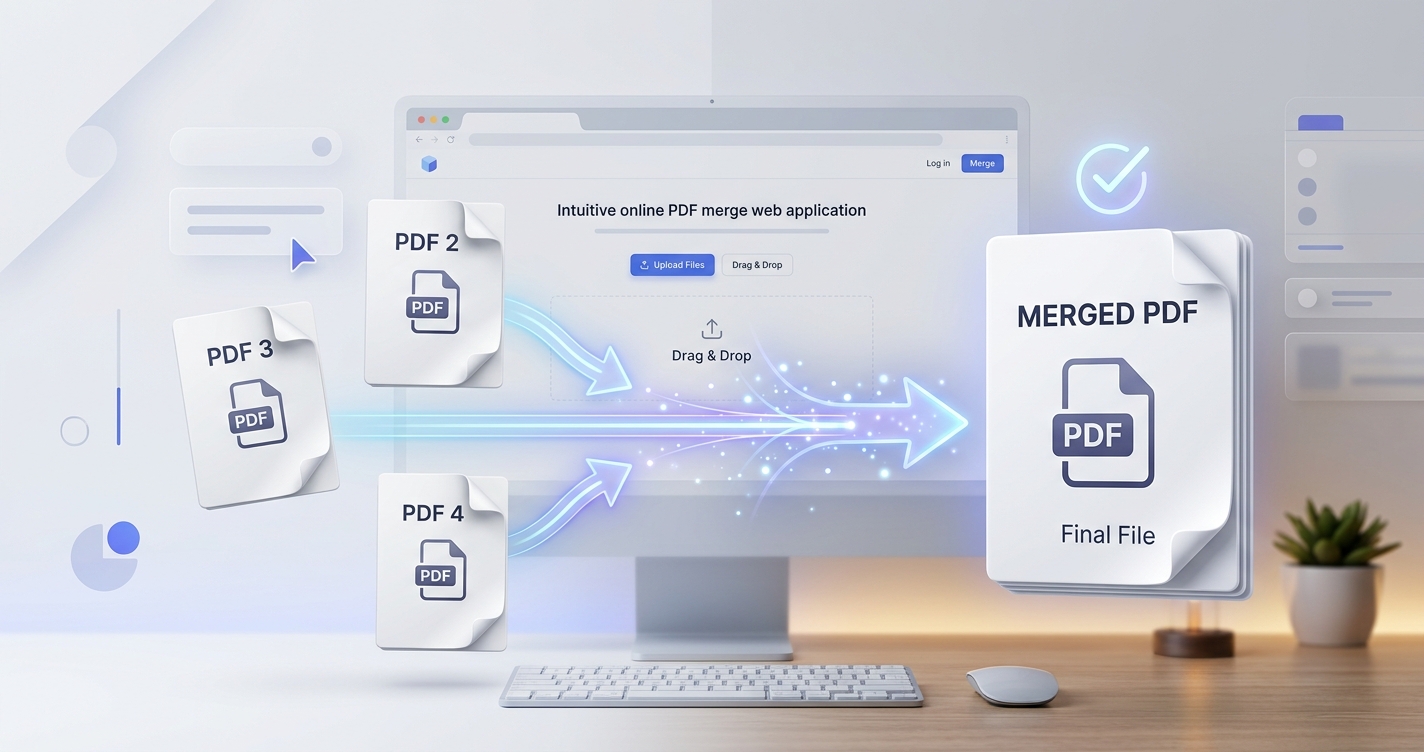
How to Merge PDF Files Online for Free

Working with several PDF files at once can quickly become inconvenient. A report may be divided into multiple documents, a job application may include a resume and certificates, or a project may contain several separate PDF attachments that need to be submitted as one file.
Fortunately, you don't need expensive software to combine them. You can merge PDF files online for free using a browser-based PDF merger, often in just a few steps.
The basic process is simple: upload your PDF files, arrange them in the correct order, merge them, and download the resulting document. The more important part is knowing how to prepare the files, check the final result, handle different page sizes, and protect sensitive information.
ZUQREN also provides a collection of online PDF tools for tasks such as merging, splitting, compressing, converting, organizing, and managing PDF documents.
This guide explains everything you need to know about merging PDF files online for free, including the easiest workflow, common problems, privacy considerations, and what to do when the final PDF is too large.
What Does It Mean to Merge PDF Files?
Merging PDF files means combining two or more separate PDF documents into one PDF.
For example, suppose you have these files:
Cover-Letter.pdfResume.pdfCertificates.pdfPortfolio.pdf
Instead of sending four separate attachments, you can combine them into:
Job-Application.pdf
The pages from each document are placed together in one file, usually in the order you specify.
This is different from converting or compressing a PDF.
Merging combines multiple PDF documents into one.
Compressing reduces the size of a PDF.
Converting changes a document from one format to another, such as Word to PDF.
Splitting takes one PDF and separates it into multiple files.
These tasks are often used together. For example, you might merge several documents into one PDF and then compress the final file if a website imposes a file-size limit.
Why Merge PDF Files?
There are many situations where combining PDFs makes more sense than keeping several separate files.
Easier sharing
Sending one organized PDF is often simpler than attaching five or ten individual documents to an email.
This is particularly useful when the recipient needs to read the documents in a specific order.
Easier online submissions
Some websites allow you to upload only one document. If you need to submit a resume, certificates, references, and other supporting documents, merging them into one PDF solves the problem.
Better organization
A single PDF can create a logical document structure.
For example:
Cover page → Introduction → Main report → Supporting documents → Appendix
This makes the information easier to follow.
Easier archiving
Keeping related documents together can also make digital storage more organized. Instead of searching through a folder containing dozens of separate PDFs, you can keep related material in one clearly named document.
Professional presentation
A well-organized PDF can look more polished when you're sending a proposal, portfolio, report, application, or project documentation.
The key is not simply to combine everything. You should remove unnecessary pages and arrange the content logically before creating the final document.
How to Merge PDF Files Online for Free
Using an online PDF merger is usually the quickest method when you don't want to install software.
The exact interface will vary depending on the tool, but the workflow is generally similar.
1. Collect the PDF files
First, locate all of the documents you want to combine.
Before uploading them, check that you have the correct versions.
This is particularly important when several files have similar names. For example, you might have:
Report-final.pdfReport-final-2.pdfReport-final-new.pdf
Opening the files first can prevent you from accidentally merging an outdated version.
It's also useful to decide the order before you start.
2. Open a PDF merger
Open an online PDF merging tool in your browser.
If you're already using ZUQREN for document-related tasks, its PDF tools section includes a Merge PDF tool alongside other utilities for working with PDF files.
A browser-based tool is convenient because you don't normally need to install a separate application.
3. Upload your PDFs
Select the PDF files from your computer, tablet, or phone.
Some tools also support drag-and-drop, which can make the process faster on desktop computers.
Wait until all files have finished uploading before moving to the next step.
If a particular document fails to upload, check its file size and whether it opens correctly on your device.
4. Arrange the files
This is one of the most important parts of the process.
The order of the files generally determines the order of the pages in the final document.
For example, if you're creating a business proposal, you might arrange the files like this:
- Cover page
- Executive summary
- Proposal
- Pricing
- Company information
- Terms and conditions
If you accidentally put the pricing document before the proposal, the resulting PDF may be confusing to the reader.
Most online PDF mergers provide a visual interface where you can drag files into the correct position.
Take a moment to check the sequence before merging.
5. Merge the files
Once everything is in the correct order, select the merge or combine option.
The service will process the documents and create a new PDF containing the pages from your selected files.
The processing time depends on factors such as the number of files, the number of pages, and the size of the documents.
6. Download the merged PDF
When the process is complete, download the new PDF.
Give it a useful filename instead of leaving it as something generic such as merged.pdf.
For example:
Website-Project-Documents.pdf
or:
John-Smith-Application.pdf
A descriptive filename makes the document easier to identify later.
7. Check the final document
Don't skip this step.
Open the merged PDF and quickly verify:
- The files are in the correct order.
- No pages are missing.
- There are no unexpected blank pages.
- Important images are visible.
- Text remains readable.
- Portrait and landscape pages display correctly.
- The file opens normally.
- The file size is acceptable.
If the PDF is going to an employer, client, school, government office, or another important recipient, this final check is especially worthwhile.
Merge PDF Files Directly with ZUQREN
For a simple PDF merging task, you can use the PDF tools available on ZUQREN.
The platform includes a dedicated Merge PDF utility as part of its online PDF toolkit, which also includes tools for compression, page removal, PDF conversion, and other common document tasks.
The advantage of using a dedicated PDF tool is that you don't need to install a full desktop PDF editor just to combine a few documents.
If you regularly work with PDF files, you can also explore ZUQREN's other PDF utilities when a task goes beyond simple merging.
For example, if you need to make the resulting document smaller, a PDF compressor can be useful after merging. If you accidentally include unnecessary pages, a Remove PDF Pages tool can help clean up the document. ZUQREN lists both among its PDF utilities.
How to Merge Two PDF Files
If you only need to combine two documents, the process is even simpler.
Suppose you have:
Invoice.pdf
and
Receipt.pdf
Upload both files, place them in the desired order, and merge them.
The resulting document might be:
Invoice-and-Receipt.pdf
This is useful when you need to keep two related documents together for accounting, record keeping, or submission.
The same process works for larger collections of PDFs.
How to Merge Multiple PDF Files
Online PDF mergers can also be useful when you're dealing with several documents.
For example, imagine you're preparing a university application with:
- Personal statement
- Resume
- Academic transcript
- Certificates
- Recommendation letter
- Portfolio
Instead of uploading each file individually, you can combine them into one organized PDF when the submission requirements allow it.
The most important thing is to establish the order first.
A logical sequence might be:
Personal statement → Resume → Transcript → Certificates → Recommendation → Portfolio
The exact order depends on the instructions from the recipient.
How to Merge PDFs on Windows
Windows users don't need a dedicated PDF editor simply to combine a few PDF files.
An online PDF merger can be opened through a standard browser and used without installing additional desktop software.
This can be especially convenient when you're working temporarily on another computer or don't want to install another application.
For people who work with PDFs every day, desktop software can still make sense because it may provide additional capabilities such as editing, annotation, OCR, page management, and document creation.
For an occasional merge, however, an online tool is usually more convenient.
How to Merge PDFs on Mac
Mac users have several options.
For occasional PDF work, an online merger can be convenient because the process happens through a browser.
macOS also includes Preview, which provides several PDF page-management functions and can be useful when you want to combine documents locally.
The choice depends on the task.
If you're working with ordinary, non-sensitive documents and want a quick solution, an online tool is convenient. If the documents are confidential or you need to work offline, a local application may be preferable.
How to Merge PDFs on a Phone
You can also merge PDF files from a smartphone.
This is useful if the documents are stored in your phone's file manager, cloud storage, or email attachments.
The general process is:
- Open your browser.
- Go to an online PDF merger.
- Select the PDF files.
- Upload them.
- Arrange their order.
- Merge the files.
- Download the resulting PDF.
- Open the file and verify it.
For two or three small PDFs, this can be very convenient.
If you're combining dozens of files or working with large scanned documents, a computer will usually be easier to manage.
Can PDFs With Different Page Sizes Be Merged?
Yes.
PDF documents can contain pages with different dimensions.
For example, you might combine an A4 report with a US Letter document or a scanned page with a slightly different size.
The resulting PDF can still contain all of those pages.
However, different page sizes can become noticeable when the document is printed.
If consistent printing is important, check the final PDF carefully. You may need a PDF editor or another document-processing tool to standardize the page dimensions.
For digital reading, different page sizes are usually less problematic.
Can You Merge Portrait and Landscape PDFs?
Yes.
A single PDF can contain both portrait and landscape pages.
This is common when a document includes wide spreadsheets, financial tables, charts, or technical diagrams.
For example, your main report might use portrait pages while an Excel-style table appears in landscape orientation.
You don't necessarily need to rotate everything into the same orientation. Keeping a wide table in landscape may actually make it easier to read.
After merging, simply make sure the pages display correctly.
Can You Merge Scanned PDFs?
Yes, scanned PDF documents can generally be merged with other PDF files.
However, it's important to understand what merging does—and doesn't—do.
If a scanned PDF contains pages saved as images, merging it doesn't automatically turn those images into editable text.
For example, imagine you scanned a five-page paper document.
After merging it with another PDF, those five pages are still scanned pages.
If you want to search or copy the words inside them, you'll generally need OCR, or optical character recognition.
ZUQREN also offers an Image to Text Converter designed to extract text from images using OCR.
This can be useful when your workflow involves both scanned images and PDF documents.
What Is OCR and Why Does It Matter?
OCR allows software to analyze text contained inside an image and convert it into machine-readable text.
This is particularly useful for:
- Scanned documents
- Photographed pages
- Receipts
- Printed forms
- Old documents
- Screenshots containing text
Without OCR, a scanned page may behave more like a photograph than a normal text-based PDF.
If your goal is simply to combine documents, you don't necessarily need OCR. But if you need searchable or editable text, OCR becomes important.
Can You Merge Password-Protected PDFs?
Sometimes, but security restrictions can prevent a PDF from being processed normally.
If a document is encrypted or protected, the merger may require the appropriate password or permission.
If you own the document and know the password, you may be able to unlock it using authorized PDF software before merging.
Don't attempt to bypass security restrictions on documents you don't have permission to modify.
If a signed or protected document is important, keep the original file as a backup.
Does Merging PDFs Reduce Quality?
Not necessarily.
Merging PDF files is primarily an organizational operation. It doesn't inherently require every page to be converted into a low-quality image.
However, the exact behavior depends on the tool and how it processes the files.
This matters if your PDFs contain:
- High-resolution photographs
- Detailed diagrams
- Technical drawings
- Scanned documents
- Screenshots
- Charts
- Large graphics
After merging, open the resulting document and compare important pages with the originals.
If visual quality matters, don't assume the result is perfect simply because the merge completed successfully.
Does Merging PDFs Reduce File Size?
Usually, no.
In fact, the resulting PDF will often be larger than the individual source files because it contains all of their pages.
For example:
- Document A: 2 MB
- Document B: 3 MB
- Document C: 4 MB
The merged document could be around 9 MB, although the exact size depends on how the files are processed.
Merging and compression are different operations.
If the final PDF is too large, you can compress it afterward.
ZUQREN includes a PDF Compressor among its PDF tools, making it possible to handle the two tasks separately: first combine the documents, then reduce the file size if necessary.
What If the Merged PDF Is Too Large?
A large PDF can become a problem when a website has a strict upload limit or when you need to send the document by email.
There are several ways to deal with it.
Compress the PDF
Compression can reduce file size, particularly when the document contains large images or scanned pages.
The trade-off is that stronger compression can reduce image quality.
Always check the compressed version before sending it.
Remove unnecessary pages
Sometimes the simplest solution is to remove pages that aren't needed.
For example, you may discover that the source documents contain duplicate cover pages, blank scans, or outdated information.
Removing them can reduce the file size while keeping the important content intact.
Optimize the original files
If one particular PDF contains extremely large images, optimizing that document before merging can make a noticeable difference.
Split the document
If the recipient allows multiple files but has a size limit for each upload, splitting the final document may be more practical.
How to Keep the Merged PDF Organized
Merging documents doesn't automatically make them organized.
Before creating the final PDF, think about how another person will read it.
For a job application, for example, the reader shouldn't have to guess which file contains the resume and which one contains the supporting documents.
A clear structure might look like:
1. Cover letter
2. Resume
3. Education
4. Certifications
5. References
6. Portfolio
The same principle applies to business documents.
For a project, you might use:
1. Project overview
2. Requirements
3. Main documentation
4. Supporting materials
5. Appendix
A logical structure makes the document easier to navigate and reduces the chance that an important page will be overlooked.
How to Name Your Merged PDF
A good filename is simple, descriptive, and easy to recognize.
Instead of:
merged.pdf
consider:
Marketing-Report-September-2026.pdf
or:
John-Smith-Application.pdf
or:
Website-Redesign-Documents.pdf
Avoid filenames such as:
final-final-new-2.pdf
They may make sense temporarily while you're working, but they become confusing when files are shared or archived.
Is It Safe to Merge PDFs Online?
This deserves careful consideration.
When you use an online PDF merger, your files may need to be uploaded to a remote server for processing. Therefore, you should understand how the service handles uploaded documents before using it for sensitive information.
For ordinary documents, this may not be a major concern.
For confidential documents, it matters much more.
Before uploading sensitive files, look for information about:
- File retention
- Automatic deletion
- Data handling
- Encryption
- Privacy policies
- Account requirements
- Third-party processing
ZUQREN's own terms explain that some of its tools may process uploaded files and advise users to keep appropriate backups of important files. They also recommend avoiding submission of passwords, payment information, confidential business information, or other highly sensitive information unless specifically required by the relevant service.
The same principle applies to any online PDF service.
If a document contains highly sensitive information and you don't need an online workflow, local PDF software may be the safer choice.
Online PDF Merger vs Desktop Software
Both options can be useful, depending on what you're trying to accomplish.
| Feature | Online PDF merger | Desktop PDF software |
|---|---|---|
| Installation required | Usually no | Yes |
| Internet required | Usually yes | Usually no |
| Convenient for occasional use | Yes | Yes |
| Advanced editing | Depends on tool | Usually stronger |
| Offline processing | No | Yes |
| Large workflows | Depends on limits | Often more flexible |
| Sensitive documents | Requires careful review | Better suited to local processing |
| Works across devices | Very convenient | Depends on installation |
For occasional document merging, an online tool is often the fastest solution.
For professional PDF workflows involving frequent editing, signatures, OCR, annotations, and large document collections, dedicated desktop software may make more sense.
When Should You Avoid an Online PDF Merger?
There are situations where local software is a better choice.
Consider working offline when:
- The document contains confidential business information.
- The file contains sensitive personal information.
- Your organization requires local processing.
- You have very large files.
- You need to process many documents repeatedly.
- Your internet connection is unreliable.
- You need advanced PDF editing features.
- You need precise control over document security.
The fact that an online tool is free doesn't automatically make it the best option.
Convenience, privacy, file size, and the nature of the documents should all be considered.
Common Problems When Merging PDF Files
Most PDF merges are straightforward, but several problems occur frequently.
The pages appear in the wrong order
The files were probably uploaded or arranged incorrectly.
Return to the ordering screen and verify the sequence before merging again.
A PDF is missing
Check whether the file actually finished uploading.
Also make sure you selected the correct version of the document.
Blank pages appear
The blank page may already exist in one of the source PDFs.
Open the original files and identify where it came from.
Some pages look different
This can happen when the source PDFs use different page sizes, orientations, fonts, or image resolutions.
Different-looking pages aren't necessarily evidence that the merge failed.
The file is too large
Compress the finished PDF or remove unnecessary pages.
If the file is still too large, consider splitting it.
A protected PDF won't merge
The document may be encrypted or restricted.
If you have the required password or permissions, use an authorized method to unlock or export the document before merging.
How to Merge PDFs Without Creating an Account
Some online PDF tools allow users to merge documents without creating an account, although this depends on the service.
This can be convenient for occasional tasks because you don't have to create another login simply to combine two files.
However, account-free access doesn't automatically tell you how a service handles uploaded files.
Privacy policies and file-processing practices remain important.
Can You Merge PDFs Without Uploading Them Online?
Yes.
If privacy is your priority, you can use software that processes documents locally on your computer.
This means the files don't need to be uploaded to an online service for the merge operation.
Local processing is especially useful for confidential contracts, financial documents, internal company records, private reports, and other sensitive material.
The trade-off is that desktop software may require installation and may provide a more complicated interface than a simple online merger.
What About Digital Signatures?
Digital signatures require extra care.
A digitally signed PDF is not the same as an ordinary PDF containing typed text or a scanned signature.
Some modifications to a signed document can affect its signature status.
If you're working with an important digitally signed document, don't assume that merging it with another PDF will preserve the signature's validity.
Keep the original signed file and verify the signature after any processing.
For documents with legal or organizational significance, follow the requirements of the system or organization that issued the signature.
A Practical Example: Combining Documents for a Job Application
Imagine you're applying for a position and the employer requests one PDF containing your application materials.
You have:
- Cover letter
- Resume
- Degree certificate
- Professional certificates
- Portfolio
Instead of submitting five separate files, you can create one document.
First, make sure all five files are the latest versions.
Then arrange them:
Cover letter → Resume → Degree → Certificates → Portfolio
Merge them into a single PDF.
Open the result and check the pages.
If the file is too large for the employer's upload system, compress it and check the quality again.
Finally, rename the file:
John-Smith-Application.pdf
This workflow is simple, but it eliminates several common problems: missing attachments, incorrect order, confusing filenames, and multiple separate uploads.
A Practical Example: Combining Business Documents
The same approach works for business projects.
Suppose you're sending a client a completed website project.
You may have:
- Project summary
- Final report
- Invoice
- Technical documentation
- Supporting screenshots
Rather than sending everything separately, you can create one project package.
Arrange the files according to how the client should read them, merge them, and verify the final document.
If the screenshots make the file very large, compression can be used afterward.
For image-heavy documents, ZUQREN also provides online image utilities such as image compression and resizing, which can be useful when you're preparing source material before creating a final PDF.
Merge First or Compress First?
In most situations, merging first is the simpler workflow.
For example:
Step 1: Prepare the individual PDFs.
Step 2: Merge them.
Step 3: Review the combined document.
Step 4: Compress the final PDF if necessary.
This makes it easier to control the final result.
However, if one source PDF is unusually large because it contains unnecessarily high-resolution images, compressing that specific file before merging may make sense.
The goal is to avoid reducing the quality of every document when only one file is causing the size problem.
Should You Remove Blank Pages Before Merging?
Usually, yes.
If a document contains accidental blank pages, removing them before merging will produce a cleaner result.
However, be careful with documents where blank pages are intentional.
For example, a report might intentionally begin a new section on a right-hand page, leaving a blank page between sections. Removing it could change the intended layout.
Always check the original document before deciding that a blank page is unnecessary.
What Should You Check Before Sending the Final PDF?
A quick final inspection can prevent many problems.
Check these points:
Page order: Is everything arranged logically?
Completeness: Are all required documents included?
Formatting: Do pages display correctly?
Orientation: Are landscape pages still readable?
Quality: Are images and scans clear?
Blank pages: Are any unexpected blank pages present?
File size: Does the document meet the recipient's upload limit?
Filename: Is the name clear and professional?
Security: Does the document contain information that shouldn't be shared?
This takes very little time compared with fixing a document after you've already submitted it.
Frequently Asked Questions
Can I merge PDF files online for free?
Yes. Online PDF mergers allow you to combine multiple PDF documents into one file without necessarily installing desktop software. The exact file limits and features vary between services.
How do I merge two PDF files?
Upload both PDFs to a PDF merger, arrange them in the desired order, select the merge option, and download the resulting file. Always open the final PDF to verify it.
Can I merge more than two PDFs?
Yes. You can generally combine multiple PDFs into one document, although online services may impose limits on the number or size of files.
Do I need Adobe Acrobat to merge PDFs?
No. Adobe Acrobat is not required. Online PDF tools and other desktop applications can also combine PDF files.
Can I merge PDFs on an iPhone or Android phone?
Yes. A browser-based PDF merger can be used from a smartphone. Small files are generally easier to manage on a mobile device than large collections of documents.
Can PDFs with different page sizes be merged?
Yes. A single PDF can contain pages with different dimensions. However, those differences may be noticeable when printing.
Can portrait and landscape pages be in the same PDF?
Yes. A PDF can contain both portrait and landscape pages. This is common when reports contain wide tables, spreadsheets, or diagrams.
Will merging PDFs reduce quality?
Not necessarily. A basic merge doesn't inherently require a quality reduction, although the exact processing depends on the tool. Check the final document when image quality is important.
Does merging PDFs make the file smaller?
No. Merging usually creates a file containing all of the source pages, so the resulting document can be larger. Use PDF compression if you need to reduce its size.
Can I merge scanned PDFs?
Yes. Scanned PDF files can be merged with other PDFs. However, merging doesn't automatically make scanned text searchable. OCR is needed for that.
Can I merge password-protected PDFs?
It depends on the type of protection and the tool. You may need the correct password or permissions before the file can be processed.
Is it safe to merge PDFs online?
It can be appropriate for ordinary documents, but you should review the service's privacy and file-handling practices before uploading sensitive information.
Can I merge PDFs without an internet connection?
Yes. Desktop PDF software can process files locally without uploading them to an online service.
What should I do if my merged PDF is too large?
Try removing unnecessary pages or compressing the final PDF. If the document still exceeds the recipient's limit, splitting it into smaller files may be necessary.
A Simple PDF Workflow That Works
For most everyday tasks, merging PDFs is much easier than it first appears.
Start by collecting the correct files and deciding their order. Upload them to an online PDF merger, arrange them carefully, and create the combined document. Then open the result and check it before sharing.
If the final document is too large, compress it. If it contains unnecessary pages, remove them. If you need searchable text from scans, use OCR. And if the files are confidential, consider processing them locally instead of uploading them to an online service.
The important thing is to choose the workflow based on the document rather than simply choosing the fastest available button.
Final Thoughts
Learning how to merge PDF files online for free can save a surprising amount of time. Whether you're combining a resume and certificates, preparing a business proposal, organizing project documents, or submitting a collection of forms, turning several PDFs into one organized file is often the simplest solution.
The process itself is straightforward:
Choose the files → Upload them → Arrange the order → Merge → Download → Check the result.
The final review is the step you shouldn't skip. Make sure the pages are in the right order, nothing is missing, the formatting looks correct, and the file isn't unnecessarily large.
For everyday documents, an online PDF merger is a convenient option. For highly sensitive files or more advanced workflows, local PDF software may be more appropriate.
If you regularly work with digital documents, having a small collection of reliable PDF utilities can make these tasks much easier. ZUQREN brings together tools for merging, compressing, converting, organizing, and managing PDFs, alongside other digital utilities for everyday work.
Whether you need to combine two PDFs or organize a much larger document package, the goal is the same: create one clean, readable, and properly organized file that's ready to share.