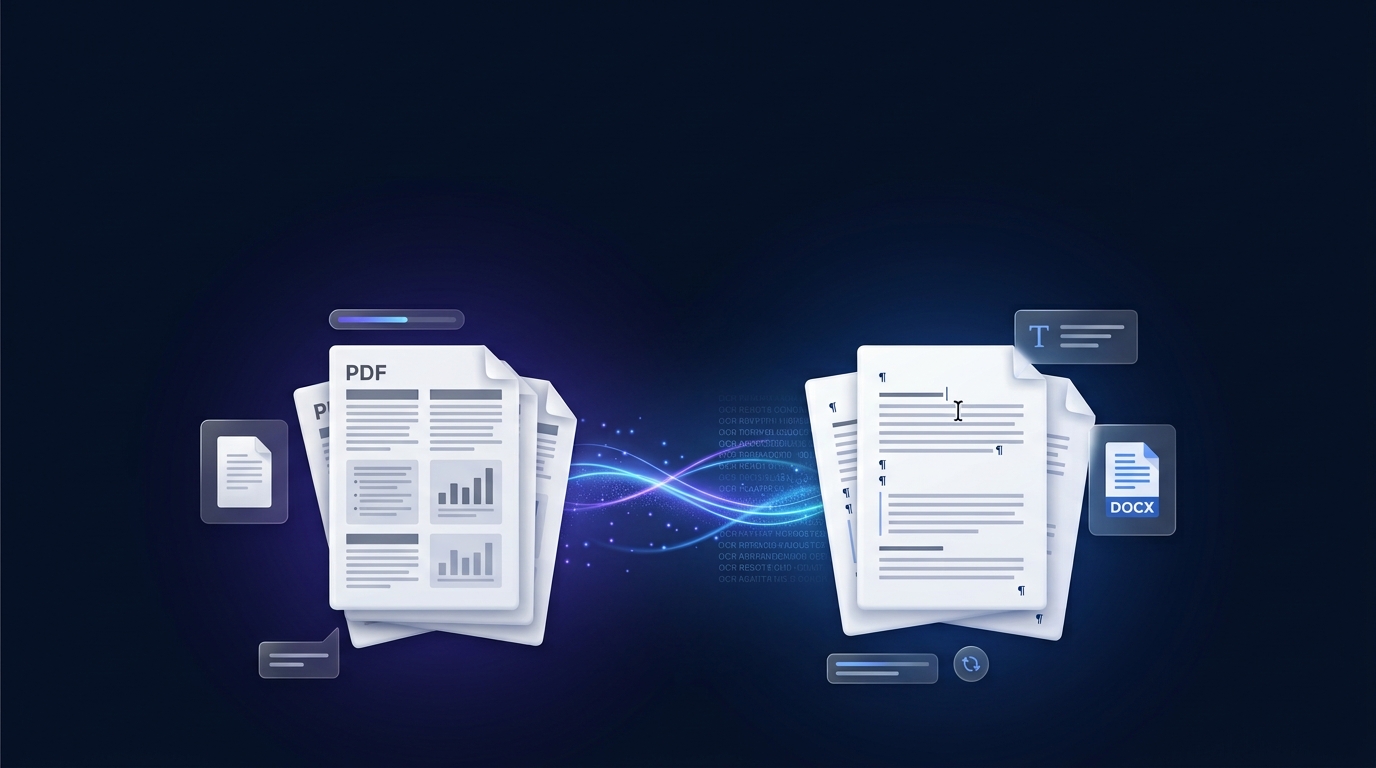
How to Convert PDF to Word for Free Online

Have a PDF that you need to edit? Maybe it is a contract with a typo, a form that needs updated information, an assignment you want to revise, or a scanned document where you need to extract the text.
The problem is that PDFs are designed to preserve a document's appearance rather than make editing easy. You can open a PDF almost anywhere, but that does not mean you can simply click on the text and start typing.
Fortunately, you do not need expensive software for most PDF to Word conversions. There are several free ways to convert a PDF into an editable Word document, including online converters, Google Docs, Microsoft Word, LibreOffice, and OCR tools for scanned PDFs.
The best method depends on the type of PDF you have.
In this guide, you'll learn how to convert PDF to Word for free, how to convert scanned PDFs using OCR, which methods work offline, how to preserve formatting, and which option is best for different types of documents.
Quick Answer: What Is the Easiest Way to Convert PDF to Word?
If you want the fastest solution without installing software, an online PDF to Word converter is usually the simplest option.
You can use the free ZUQREN PDF to Word Converter to upload a PDF and convert it into an editable DOC or DOCX file directly from your browser.
The basic process is:
Open the PDF to Word converter.
Upload your PDF file.
Click Convert to Word.
Download the resulting Word document.
Open the DOC or DOCX file in Microsoft Word or another compatible editor.
Review the formatting and make any necessary corrections.
For simple text-based PDFs, this can be much faster than manually copying and pasting the content.
Why Is Converting PDF to Word Sometimes Difficult?
PDF stands for Portable Document Format. The format was created to make documents look consistent across different computers, operating systems, and applications.
That is one of the PDF format's biggest strengths, but it is also why editing a PDF can be difficult.
A Word document contains structural information about:
Paragraphs
Headings
Fonts
Styles
Tables
Text flow
Margins
Page breaks
A PDF, on the other hand, is primarily concerned with how elements appear on a page.
When you convert a PDF to Word, the software has to analyze the PDF and reconstruct that information.
For a simple document, the process can work extremely well.
For a complex document containing tables, multiple columns, unusual fonts, images, graphics, or scanned pages, the conversion may require additional cleanup.
First, Check What Type of PDF You Have
Before choosing a conversion method, determine whether your PDF contains actual text or scanned images.
Text-Based PDF
A text-based PDF was usually created digitally using software such as Microsoft Word, Google Docs, Excel, or another document application.
You can normally select the text with your mouse and copy it.
These PDFs are generally the easiest to convert.
Scanned PDF
A scanned PDF is essentially a collection of images.
If you click on the page and cannot select individual words, your PDF may be scanned.
These documents require OCR, which stands for Optical Character Recognition.
OCR analyzes the shapes in an image and attempts to recognize them as letters, numbers, and words.
The quality of the result depends heavily on the original scan.
Method 1: Use ZUQREN PDF to Word Converter
If you want a simple browser-based solution, ZUQREN's free PDF to Word Converter is a convenient option.
The tool is designed to convert PDF files into editable Microsoft Word documents in DOC or DOCX format.
How to Convert PDF to Word with ZUQREN
Go to the ZUQREN PDF to Word Converter.
Select your PDF file or drag it into the upload area.
Click Convert to Word.
Wait for the conversion to finish.
Download the generated Word document.
Open the document and review the formatting.
ZUQREN's tool is particularly useful when you need a quick conversion without installing a desktop application. The tool is designed to extract PDF text and content and create an editable Word document while preserving formatting and document structure when possible.
When Should You Use ZUQREN?
It is a good choice when you:
Need to convert a PDF quickly
Do not want to install software
Are working from a browser
Need an editable DOC or DOCX file
Want a simple PDF conversion workflow
If your PDF is scanned and contains no selectable text, you may need an OCR solution instead.
For extracting text from images, you can also try the ZUQREN Image to Text Converter.
Method 2: Convert PDF to Word with Google Docs
Google Docs provides another free way to extract text from a PDF.
If you already have a Google account, you can upload your PDF to Google Drive and open it with Google Docs.
How to Convert PDF to Word Using Google Docs
Open Google Drive.
Upload your PDF.
Right-click the PDF.
Choose Open with → Google Docs.
Google Docs will attempt to extract the document's text.
Review the converted content.
Select File → Download → Microsoft Word (.docx).
This method can work particularly well with simple, text-based PDFs.
It can also perform OCR on some scanned documents.
Limitations of Google Docs
Google Docs may struggle with:
Multi-column layouts
Complex tables
Text boxes
Advanced page designs
Custom fonts
Precise image positioning
Highly formatted resumes
Graphics-heavy documents
The converted document may contain the correct text but look significantly different from the original PDF.
Another consideration is privacy. Google Docs is a cloud-based service, so your document is uploaded to Google's infrastructure during the process.
Method 3: Convert PDF to Word with Microsoft Word
If Microsoft Word is already installed on your computer, you may not need another converter.
Modern versions of Word can open many PDF files and automatically convert them into editable documents.
How to Convert a PDF Using Microsoft Word
Open Microsoft Word.
Select File.
Choose Open.
Select your PDF.
Word will display a message explaining that it will convert the PDF into an editable Word document.
Click OK.
Review the resulting document.
Save it as a DOCX file.
Microsoft Word generally works well with straightforward documents that were originally created digitally.
It can often reconstruct:
Paragraphs
Headings
Tables
Lists
Headers
Footers
Basic formatting
When Microsoft Word May Struggle
Conversion can become less accurate when the PDF contains:
Complex graphics
Unusual fonts
Multiple columns
Large numbers of images
Complicated tables
Scanned pages
Specialized layouts
The exact result also depends on your Word version and the structure of the original PDF.
Method 4: Use LibreOffice Writer
If you do not have Microsoft Office, LibreOffice provides a free and open-source alternative.
LibreOffice Writer can open and work with many PDF documents, although complex PDF layouts may require manual adjustments.
How to Use LibreOffice
Install LibreOffice.
Open Writer.
Select File → Open.
Choose your PDF.
Allow LibreOffice to import the document.
Edit the content.
Save or export the document in a Word-compatible format.
LibreOffice is especially useful if you want an offline solution without purchasing Microsoft Office.
It runs on Windows, macOS, and Linux.
However, like other conversion methods, it may struggle with highly designed PDFs and scanned documents.
Method 5: Use Free Online PDF Converters
Another option is to use an online PDF conversion service.
Popular services include:
Smallpdf
iLovePDF
Adobe Acrobat Online
PDF2Go
PDF2DOC
The general process is similar:
Upload PDF → Convert → Download Word
Online converters are convenient because they do not require desktop software.
They can be useful when:
You are using a public computer
You are working from a phone
You cannot install software
You only need to convert one or two documents
You want a quick browser-based solution
However, free plans may have restrictions involving file size, number of conversions, OCR, or other features.
Because these services change their plans and limitations over time, always check the current terms before relying on a specific free feature.
Method 6: Convert a Scanned PDF Using OCR
A normal PDF converter may not be enough if your PDF is made from scanned pages.
Imagine you have a scanned contract.
You open it and try to highlight a sentence.
Nothing happens.
That is because the page is an image rather than actual digital text.
You need OCR — Optical Character Recognition.
OCR software examines the image and attempts to identify the characters.
For example:
Scanned image → OCR → Recognized text → Editable document
OCR can work very well with clean, high-resolution printed documents.
However, it can make mistakes with:
Handwriting
Blurry scans
Low-resolution documents
Unusual fonts
Damaged pages
Low contrast
Complex backgrounds
ZUQREN Image to Text
If you need to extract text from an image or scanned page, you can also use the ZUQREN Image to Text Converter.
It is designed to extract text from supported image files and turn the recognized content into editable, copyable text.
This can be useful when your PDF consists primarily of scanned images.
PDF to Word Conversion: Which Method Is Best?
The best method depends on your document.
| Method | Free | Online | Offline | OCR | Best For |
|---|---|---|---|---|---|
| ZUQREN PDF to Word | Yes | Yes | No | Depends on document | Quick browser conversion |
| Google Docs | Yes | Yes | No | Yes | Simple PDFs and text extraction |
| Microsoft Word | Depends on license | No | Yes | Limited/varies | Existing Word users |
| LibreOffice | Yes | No | Yes | Limited | Free offline editing |
| Online converters | Usually limited | Yes | No | Varies | Quick conversions |
| OCR tools | Often | Varies | Varies | Yes | Scanned PDFs |
Best Choice for Simple PDFs
For a straightforward digital PDF, an online converter such as ZUQREN PDF to Word can be one of the quickest approaches.
Best Choice If You Already Have Word
Try Microsoft Word first.
Best Free Offline Option
LibreOffice is a strong choice if you want to avoid paid office software.
Best Choice for Scanned Documents
Use an OCR-capable solution.
How to Convert PDF to Word Without Losing Formatting
One of the biggest concerns users have is formatting.
Unfortunately, no converter can guarantee that every PDF will be reproduced perfectly in Word.
However, you can improve the results considerably.
1. Start With the Original PDF
If possible, use the original high-quality PDF rather than a screenshot or compressed copy.
The cleaner the source, the easier it is for conversion software to interpret.
2. Check the Fonts
Unusual or proprietary fonts may not exist on your computer.
If the original font is unavailable, Word may substitute another font.
This can change spacing and page breaks.
3. Check Tables Carefully
Tables are one of the elements most likely to require cleanup.
After conversion, check:
Column widths
Row heights
Borders
Cell alignment
Text wrapping
4. Review Images
Images can sometimes move during conversion.
Check their:
Position
Size
Alignment
Text wrapping
5. Review Page Breaks
A conversion may create additional pages or move content to another page.
Check the entire document before sending or publishing it.
How to Convert a PDF to Word on Your Phone
You do not necessarily need a computer.
If you have an Android or iPhone, you can use a browser-based converter.
For example, open ZUQREN PDF to Word from your mobile browser and upload the PDF.
The general process remains the same:
Open the converter.
Select the PDF from your phone.
Start the conversion.
Download the Word file.
Open the DOCX file using a compatible document application.
This approach is useful when you need to convert a document while traveling or when you do not have access to a computer.
How to Convert PDF to Word Without Installing Software
If you do not want to install Microsoft Word, LibreOffice, or another application, an online converter is the easiest solution.
You can use ZUQREN's online PDF to Word tool directly from your browser.
There is no need to learn complicated software.
The workflow is simply:
PDF → Upload → Convert → Word
This is particularly useful for occasional conversions.
Is It Safe to Use Free Online PDF Converters?
Privacy is an important consideration when using online file conversion services.
When you upload a document to an online converter, the file may be processed on remote servers.
That means you should think carefully about the type of document you are uploading.
Avoid uploading highly sensitive documents to an online service unless you have reviewed the provider's privacy and security practices and are comfortable with the arrangement.
Sensitive documents may include:
Confidential business contracts
Financial records
Documents containing passwords
Private personal information
Sensitive legal documents
Confidential company information
For highly sensitive files, an offline conversion method may be preferable.
You should also review the privacy policy and terms of the specific service you choose.
ZUQREN's terms explain that users remain responsible for the files they submit and recommend keeping backups of important files before using online file-processing tools.
Why Does My Word Document Contain Images Instead of Text?
This usually happens because the original PDF is scanned.
A scanner creates an image of the page.
Without OCR, the converter may simply place that image inside the Word document.
The result looks like the original page, but you cannot edit the individual words.
The solution is to use OCR.
You can try an OCR-enabled solution such as Google Docs or use an image-to-text tool such as the ZUQREN Image to Text Converter.
Can I Convert a Password-Protected PDF to Word?
It depends on the type of protection applied to the PDF.
Some protected PDFs prevent editing, copying, or conversion.
If the PDF requires a password to open, you generally need the correct password before accessing its contents.
If you own the document or have permission to modify it, remove the protection using an appropriate method before attempting conversion.
Never attempt to bypass protection on documents you do not have permission to access.
What If the Converted Document Looks Wrong?
Do not immediately assume that the converter failed.
PDF-to-Word conversion is an interpretation process.
Some elements may require manual adjustment.
Check:
Font sizes
Paragraph spacing
Page margins
Tables
Images
Headers
Footers
Page breaks
Lists
Columns
For complicated documents, try another conversion method.
For example, if Google Docs produces poor results, try Microsoft Word or an online PDF converter.
Tips for Getting Better OCR Results
If you are converting a scanned PDF, the quality of the original scan matters enormously.
Use a High-Quality Scan
Higher-resolution scans generally give OCR software more information to work with.
Keep Text Straight
Pages that are heavily rotated or skewed can be harder for OCR systems to process accurately.
Improve Contrast
Clear dark text against a clean background is easier to recognize than faint or noisy text.
Avoid Handwritten Documents
Handwriting is significantly more difficult for OCR systems than clean printed text.
Proofread the Result
OCR can make subtle mistakes.
For example:
O may become 0
I may become 1
S may become 5
Always review important documents after OCR.
When Free PDF to Word Conversion Is Not Enough
Free conversion tools work well for many everyday documents, but some PDFs are simply too complex for automatic conversion to reproduce perfectly.
You may need professional software or manual editing when working with:
Complex Mathematical Equations
Equations can lose symbols, spacing, subscripts, and formatting.
Interactive PDF Forms
Interactive fields, scripts, and PDF-specific functionality may not have direct Word equivalents.
Highly Designed Documents
Magazines, brochures, catalogs, and marketing materials may contain complex layouts that do not translate cleanly into Word.
Legal Documents
If formatting is legally significant, always carefully verify the converted document against the original.
Complex Tables
Large tables with merged cells, nested structures, or unusual formatting can require extensive cleanup.
In these situations, the goal should not simply be to convert the file.
The converted document should be carefully compared with the original.
Frequently Asked Questions
Can I convert PDF to Word for free?
Yes. Several free options are available, including browser-based converters, Google Docs, LibreOffice, and built-in PDF opening capabilities in Microsoft Word.
For a quick online conversion, you can try the ZUQREN PDF to Word Converter.
What is the easiest way to convert PDF to Word?
For most users, an online PDF to Word converter is the simplest approach.
Upload the PDF, start the conversion, and download the resulting DOC or DOCX file.
Can I convert a scanned PDF to Word?
Yes, but scanned PDFs usually require OCR.
Without OCR, the resulting Word file may contain images instead of editable text.
Can I convert PDF to Word on my phone?
Yes. Browser-based PDF converters can be accessed from smartphones, allowing you to upload and convert PDFs without a desktop computer.
Will PDF to Word conversion preserve formatting?
Simple documents often retain much of their original formatting.
Complex documents may require manual cleanup.
Tables, columns, images, unusual fonts, and graphics are among the elements most likely to change during conversion.
Can I convert PDF to Word without Microsoft Word?
Yes.
You can use an online converter such as ZUQREN PDF to Word, Google Docs, or LibreOffice.
Why is my converted Word document full of images?
Your PDF is probably scanned or image-based.
Use an OCR-capable tool to turn the visual text into editable text.
Is online PDF conversion safe?
It depends on the service and the type of document.
Avoid uploading confidential or highly sensitive documents unless you have reviewed the service's privacy and security practices.
For sensitive files, consider an offline solution.
Can I convert PDF to Word without losing quality?
You can often achieve good results with a clean, text-based PDF, but perfect conversion is not guaranteed.
Always review the converted document before relying on it.
What is OCR?
OCR stands for Optical Character Recognition.
It is technology that analyzes images of text and converts them into machine-readable characters that can be edited or searched.
Other Useful PDF Tools
Converting PDF to Word is only one common PDF task.
Depending on what you need to accomplish, you may also need to:
Merge multiple PDFs
Compress a large PDF
Convert PDF to Excel
Convert PDF to PowerPoint
Convert PDF to images
Split or remove PDF pages
Convert Word documents to PDF
You can explore more free PDF tools on ZUQREN for these and other document-related tasks.
If you need to extract text from an image or scanned page, try the ZUQREN Image to Text Converter.
Conclusion
Converting PDF to Word for free is easier than it used to be.
For a simple digital PDF, an online converter can turn your document into an editable Word file in just a few steps. If you already use Microsoft Word, its built-in PDF conversion can be convenient. Google Docs provides another accessible cloud-based option, while LibreOffice is useful for users who prefer free offline software.
For scanned documents, the situation is different. You will usually need OCR to transform the text contained in page images into editable content.
The most important thing is to choose the method based on your PDF.
A simple text document does not require the same approach as a scanned contract, a graphics-heavy brochure, or a complex financial report.
If you want a quick browser-based solution, try the ZUQREN PDF to Word Converter and turn your PDF into an editable Word document without installing dedicated conversion software.
Once the conversion is complete, remember to review the document carefully. Check the text, formatting, tables, images, and page breaks before using the final Word file.
With the right method, you can handle most everyday PDF to Word conversions for free.