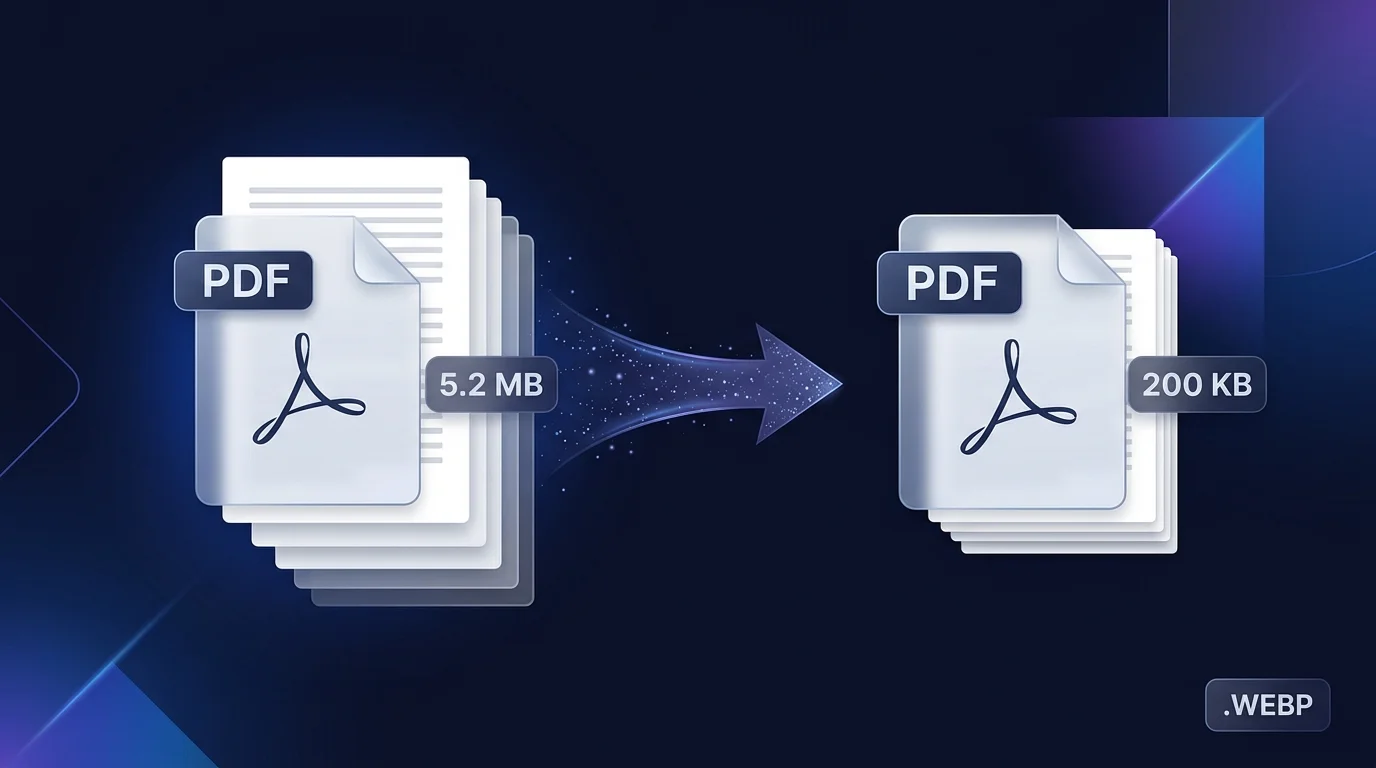
How to Compress a PDF to 200KB Online for Free

Many digital platforms impose strict file size limits, making it difficult to submit important documents. If you need to compress a PDF to 200KB, you likely feel frustrated by complex software requirements. Fortunately, you can manage your files efficiently without installing expensive programs.
Using reliable tools allows you to streamline your workflow while maintaining document clarity. This guide provides a simple, step-by-step process to help you achieve your goals quickly. You will learn how to prepare your files, verify quality, and ensure your data remains secure during the process.

Whether you are applying for jobs or sending reports, knowing how to compress PDF online free is a vital skill. We will walk you through every stage, from initial upload to final download. By following these instructions, you can meet strict upload requirements with confidence and ease.
Key Takeaways
- Learn how to reduce file sizes effectively while preserving text legibility.
- Discover the best methods to compress PDF online free without software downloads.
- Understand the importance of data privacy when using web-based conversion tools.
- Follow a clear, professional workflow to meet strict 200KB upload limits.
- Gain tips for verifying document quality after the reduction process is complete.
Understand the 200KB PDF Size Target
Many online portals and email systems enforce a 200KB PDF size limit to ensure smooth data transmission. This threshold acts as a gatekeeper for servers, preventing them from becoming overwhelmed by massive attachments.
What a 200KB Limit Means for Sharing and Uploading
When you encounter a strict 200KB limit, it usually indicates that the receiving system is optimized for fast processing. Whether you are submitting a job application or uploading tax documents, staying under this cap ensures your file is accepted without errors.
If your document exceeds this size, the system will likely reject it immediately. Efficiency is key when dealing with these automated portals, as they prioritize lightweight files to maintain system stability.
Why a PDF May Need More Than One Compression Attempt
Achieving effective PDF file size reduction is rarely a one-size-fits-all process. You might find that your first attempt at compression does not reach the target, requiring you to adjust your settings for a more aggressive result.
Different tools use varying algorithms to shrink data. If the initial pass fails to hit the mark, you may need to experiment with lower image quality or font subsetting to reach the desired 200KB threshold.
Difference Between 200KB and 200KiB
It is important to understand the technical distinction of 200KB vs 200KiB. While often used interchangeably, they represent different measurement standards in computing.
Kilobytes (KB) are based on the decimal system (1,000 bytes), whereas Kibibytes (KiB) use the binary system (1,024 bytes). This small difference can sometimes cause confusion when your computer reports a file size that differs slightly from the website's requirement.
How Text, Images, Fonts, and Scanned Pages Affect File Size
The internal composition of your document dictates how much space it occupies. High-resolution images and embedded fonts are the primary culprits behind bloated file sizes.
- Images: Large, uncompressed photos consume the most storage.
- Fonts: Embedding entire font sets adds significant weight to the file.
- Scanned Pages: These are essentially large images, which often require heavy optimization to meet strict limits.
- Text: While generally lightweight, excessive formatting can still contribute to the total size.
Prepare the PDF Before Compressing It
Optimizing your file structure is the most effective way to ensure your document meets strict size requirements. Performing PDF compression before upload is much more successful when the source file is already lean and efficient. By removing digital clutter, you allow the compression algorithm to focus on the essential data rather than wasting resources on hidden elements.
Remove Unnecessary Pages and Duplicate Content
Start your cleanup by reviewing the document for redundant information. Many users accidentally include extra pages or duplicate sections that serve no purpose in the final version. Deleting these pages is the fastest way to drop your file size significantly before you even touch a compression tool.
Delete Comments, Attachments, Metadata, and Embedded Files
Hidden data often hides in plain sight, bloating your file without adding value. You should remove PDF metadata, such as author names, creation dates, and software tags, which can accumulate over time. Additionally, check for embedded attachments or lingering comments that were meant for internal review but are not needed for the final submission.
Check Whether the PDF Contains Scanned Images
Documents created from physical scans often carry massive file sizes due to high-resolution bitmaps. To reduce scanned PDF size, you must evaluate if the document is composed of images rather than selectable text. If the file is a collection of high-resolution scans, it will naturally be much larger than a text-based document.
Identify Large Photos and Full-Color Graphics
High-resolution photos and complex graphics are the primary culprits behind oversized files. You should identify these elements early to determine if they can be cropped or replaced with lower-resolution versions. Careful management of these visual assets ensures that your document remains professional while staying under the 200KB limit.
Save an Original Copy Before Making Changes
Always maintain a backup of your work before you begin the editing process. Once you delete pages or strip metadata, it can be difficult to recover the original information. Keeping a master copy ensures that you have a safety net if you accidentally remove something vital during the optimization phase.
| File Element | Impact on Size | Action Required |
|---|---|---|
| Unused Pages | High | Delete immediately |
| Metadata | Low | Clear all tags |
| High-Res Photos | Very High | Downsample or crop |
| Embedded Fonts | Medium | Subset or remove |
Compress a PDF to 200KB Online for Free
You can quickly compress a PDF to 200KB online for free by following a few simple steps. Many web-based platforms allow you to shrink large documents without installing complex software. Finding the right free online PDF compressor is the first step toward meeting your specific document requirements.
Choose a Free Online PDF Compression Tool
Selecting a reputable service ensures your data remains secure while you work toward your target PDF file size. Each platform offers unique features tailored to different user needs.
Adobe Acrobat Online for a Familiar Browser-Based Workflow
Adobe provides a highly reliable interface that maintains document integrity. It is an excellent choice if you prefer a professional, standard environment for your compression tasks.
Smallpdf for Simple Compression Levels
Smallpdf is known for its user-friendly design. It offers a straightforward drag-and-drop experience that makes it easy to reduce file weight in seconds.
iLovePDF for Compression and File Management Options
iLovePDF stands out by offering additional tools alongside compression. You can merge, split, or organize your files while ensuring they meet your size constraints.
| Tool Name | Ease of Use | Customization | Best For |
|---|---|---|---|
| Adobe Acrobat | High | Moderate | Professional Quality |
| Smallpdf | Very High | Basic | Quick Tasks |
| iLovePDF | High | Advanced | File Management |
Upload the PDF and Select the Strongest Compression Setting
Once you select your preferred tool, upload your document to the site. Look for the strongest compression setting to ensure the best chance of reaching the 200KB limit.
Download the Compressed File and Check Its New Size
After the process finishes, download the file to your device. Always verify the final size to confirm it meets your needs.
Use the Tool’s Target-Size Option When Available
Some advanced tools allow you to input a specific target PDF file size. This feature automates the process and saves you from manual trial and error.
Repeat the Process if the File Remains Above 200KB
If your file is still too large, do not worry. You can simply upload the already compressed version and apply a second round of stronger compression to reach your goal.
Adjust Compression Settings for a Smaller File
Achieving a 200KB file size often requires moving beyond automated settings to fine-tune specific document elements. When standard tools fall short, you must take manual control of the internal parameters to shrink your file effectively.

Reduce Image Resolution and Downsample Large Graphics
High-resolution images are often the primary culprits behind bloated file sizes. To reduce scanned PDF size, you should downsample PDF images to a lower dots-per-inch (DPI) setting, such as 72 or 150 DPI, which is usually sufficient for screen viewing.
Convert Color Images to Grayscale When Color Is Not Essential
If your document consists mostly of text or simple diagrams, color data is often unnecessary. Converting your pages to a grayscale PDF can significantly drop the file size by removing complex color information that occupies extra space.
Choose JPEG Quality That Preserves Legible Details
When applying PDF image compression, the JPEG quality setting acts as a slider between file size and visual clarity. Selecting a medium setting for your JPEG quality PDF ensures that text remains sharp while the overall file weight stays within your target range.
Subset or Remove Unused Fonts
Embedded fonts can add significant bulk to a document, especially if the entire character set is included. By subsetting fonts, you only keep the characters actually used in the text, which helps in keeping the file lean and efficient.
Balance Resolution for Text, Charts, and Photographs
Finding the right balance is key to maintaining document integrity. You should prioritize high resolution for critical charts and text, while allowing more aggressive compression for background photographs.
"Efficiency is doing things right; effectiveness is doing the right things."
Peter Drucker
Use Strong Compression Carefully for Official Documents
Be cautious when applying maximum compression to legal or official paperwork. Always verify that important signatures, stamps, and fine print remain perfectly legible after the process is complete.
Verify That the Compressed PDF Is Under 200KB
Achieving the target PDF file size is only half the battle; you must now ensure the document remains functional. A smaller file is useless if the content becomes corrupted or illegible during the process. Taking a few extra minutes to validate your work prevents submission errors later.
Check the File Size on Windows and macOS
To check PDF file size on Windows, right-click the file and select "Properties." On a Mac, select the file and press Command + I to open the "Get Info" window.
These simple steps confirm if your file is truly under the 200KB limit. If the size remains too high, you may need to repeat the compression process with more aggressive settings.
Confirm the PDF Meets the Website’s Actual Upload Requirement
While 200KB is a common standard, always verify the specific rules of the portal you are using. Some websites have unique constraints that differ from general guidelines.
Always read the submission instructions carefully. A file that is 195KB might still be rejected if the portal has a hidden limit on image resolution or page count.
Open Every Page After Compression
After you verify the file size, open the document in your preferred viewer. Scroll through every page to ensure no data was lost during the compression.
Inspect Text Clarity at Normal and Enlarged Zoom
PDF readability is essential for professional documents. Zoom in to at least 200% to ensure that small text remains sharp and that no artifacts appear around the characters.
Check Links, Forms, Signatures, and Page Orientation
Test all interactive elements to confirm they still function correctly. Ensure that digital signatures are intact and that the page orientation has not been accidentally rotated.
Rename the Final File Clearly Without Creating a Larger Archive
Once you are satisfied, save the file with a clear, descriptive name. Avoid using complex compression formats like ZIP or RAR, as these can sometimes increase the total file size or cause compatibility issues with upload portals.
| Verification Step | Action Required | Goal |
|---|---|---|
| File Size Check | Right-click properties | Confirm < 200KB |
| Visual Inspection | Zoom to 200% | Ensure PDF readability |
| Functional Test | Click all links | Verify interactivity |
| Final Naming | Rename clearly | Avoid archive bloat |
Keep the PDF Readable After Aggressive Compression
When you need to reduce scanned PDF size, maintaining the integrity of your information is the most critical step. Aggressive compression settings often strip away data that the human eye needs to interpret fine details. By choosing the right balance, you ensure that your document remains professional and functional.
Preserve Small Text, Tables, and Important Labels
Small text and complex tables are the first elements to suffer during heavy compression. To maintain PDF readability, avoid using the highest compression levels on documents containing dense data or intricate charts. Instead, prioritize keeping these sections at a higher resolution while compressing larger, less important images elsewhere in the file.
Prevent Blurry Scans and Illegible Handwritten Information
Handwritten notes and low-quality scans often become pixelated when file sizes are forced down. If your document contains signatures or handwritten annotations, use a lossless compression method if possible. This prevents the "artifacting" that makes text look fuzzy or broken.
Maintain Accessibility Features When They Matter
Accessibility is not just about visual clarity; it is about ensuring the document remains usable for everyone. When you compress a file, you must ensure that the underlying structure remains intact for screen readers and other assistive technologies.
Retain Searchable Text with OCR When Possible
Optical Character Recognition (OCR) allows your PDF to remain searchable even after it has been shrunk. Always verify that your compression tool does not strip the text layer from your document. If the text layer is removed, the file becomes a flat image, which is significantly less useful for digital archiving.
Review Contrast for Printed and Screen-Based Reading
High contrast is essential for both digital screens and physical prints. Aggressive compression can sometimes wash out light gray text or thin lines against a white background. Always perform a quick visual check to ensure that your text remains sharp and distinct against the page.
Decide When a 200KB Limit Requires Removing Visual Content
Sometimes, the 200KB limit is simply too small for a document filled with high-resolution graphics. If you cannot reach the target size without losing critical information, consider removing nonessential visual elements. Decorative borders, large logos, or background images can often be deleted to save space without impacting the core message of your document.
| Compression Level | Text Clarity | Image Quality | File Size Impact |
|---|---|---|---|
| Low | Excellent | High | Minimal Reduction |
| Medium | Good | Moderate | Significant Reduction |
| High | Fair | Low | Maximum Reduction |
Compress PDFs on Windows, Mac, and Mobile Devices
Whether you are working from a desktop or a handheld device, reducing PDF file size is a straightforward process. Modern web browsers provide a universal way to handle these tasks without needing specialized software installed on every machine.
Use a Browser on Windows or macOS
On desktop operating systems, your web browser acts as the primary gateway for file optimization. Simply navigate to a reputable online compression service, upload your document, and let the server handle the heavy lifting. This method is highly efficient for users who need to process files quickly without altering their system configuration.
Compress a PDF from an iPhone or iPad
When you need to compress PDF on mobile devices like an iPhone or iPad, the process remains largely the same as on a desktop. You can access web-based tools directly through Safari or Chrome. Ensure that your document is saved in the "Files" app so you can easily locate it when the upload prompt appears.
Compress a PDF from an Android Phone or Tablet
Users who need to compress PDF on mobile hardware running Android can utilize their preferred mobile browser. Most Android devices integrate seamlessly with cloud storage services, making it simple to pull files from Google Drive or local storage. Always verify that your browser has the necessary permissions to access your file directory before starting the upload.
Use a Stable Connection Before Uploading
A reliable internet connection is essential for a smooth experience. If your signal drops during the upload or download phase, the file may become corrupted or the process might fail entirely. Whenever possible, perform these tasks over a stable Wi-Fi network rather than relying on fluctuating cellular data.
Save the Downloaded File to a Known Folder
After the compression is complete, pay close attention to where your device saves the new file. On mobile devices, downloads often go to a specific "Downloads" folder, while desktop users might have their browser set to prompt for a save location. Keeping track of your file path prevents the frustration of losing your newly optimized document.
Compare Browser-Based and Installed Compression Workflows
While browser-based tools are convenient, you might consider offline PDF compression if you handle highly sensitive data or have limited internet access. Installed software allows you to process files locally on your hard drive, which adds a layer of security by keeping your data off external servers. However, browser tools are generally faster and require no maintenance, making them the preferred choice for most casual users who need to meet a 200KB limit on the go.
Protect Sensitive Information When Using Online Tools
Handling sensitive documents requires a cautious approach when using web-based compression tools. While these services offer convenience, they often process files on external servers. Prioritizing secure PDF compression ensures that your private data remains protected throughout the optimization process.
Review the Service’s Privacy and File-Deletion Policies
Before uploading any file, always read the provider's terms of service. Reputable platforms typically state that they delete files from their servers within a few hours of processing. Transparency is a key indicator of a trustworthy service.
"Data security is not just a technical requirement; it is a fundamental aspect of professional document management." — Industry Best Practices
Do Not Upload Highly Confidential Documents Without Approval
If your organization handles legal, financial, or proprietary information, avoid public cloud tools entirely. Always seek internal approval before using third-party software for sensitive work. When in doubt, assume that the document should remain within your company's secure network.

Remove Personal Metadata Before Uploading When Appropriate
Many documents contain hidden information that can compromise your privacy. You should remove PDF metadata to ensure that sensitive details are not inadvertently shared with the compression service.
Check for Names, Locations, Comments, and Revision History
Hidden data often includes author names, GPS coordinates from images, and previous edit logs. Cleaning these elements is a vital step in maintaining document integrity. Use the following table to identify common risks associated with file metadata.
| Metadata Type | Risk Level | Action Required |
|---|---|---|
| Author Name | Moderate | Clear field |
| Revision History | High | Flatten document |
| GPS Coordinates | High | Strip EXIF data |
Use an Offline PDF Optimizer for Restricted Files
For highly sensitive or classified documents, offline PDF compression is the safest route. By using software installed directly on your computer, you keep your data local and avoid the risks of cloud-based processing. This method provides total control over your file's security environment.
Delete Downloaded Copies from Shared or Public Devices
If you must use a public computer or a shared office device, always clear your tracks. Delete the original and the compressed files from the downloads folder and empty the trash bin immediately. Taking these extra steps helps you remove PDF metadata and prevents unauthorized access to your sensitive files after you finish your work.
Fix Common PDF Compression Problems
Encountering errors while trying to shrink your documents can be frustrating, but most issues have simple solutions. Understanding how to navigate PDF compression problems ensures your workflow remains productive and efficient.
The File Is Still Larger Than 200KB
Apply Stronger Compression or Lower Image Resolution
If your document remains above the limit, you may need to adjust your settings. Try selecting a "maximum" or "extreme" compression profile within your chosen tool. Reducing the DPI (dots per inch) of embedded images to 72 or 96 often yields significant results for PDF file size reduction.
Remove Unneeded Pages and Embedded Resources
Sometimes, the file contains hidden data that bloats the size. Manually delete unnecessary pages or remove embedded fonts that are not required for viewing. This simple cleanup often brings the file under the 200KB threshold without sacrificing visual quality.
The Text or Images Look Blurry
Increase Resolution for Scanned Text
If your text becomes illegible, the compression algorithm might be too aggressive. Try increasing the resolution slightly for scanned pages to maintain character clarity. Finding the right balance between file size and readability is essential for professional documents.
Compress Images Selectively Instead of Using the Strongest Setting
Applying PDF image compression to the entire document can degrade quality. Use selective settings to compress large photos while keeping text-heavy pages at a higher quality. This targeted approach prevents unwanted blurriness in critical areas.
The Online Tool Rejects the PDF
Check File Type, Password Protection, and Upload Limits
Online services often reject files that are password-protected or exceed specific upload limits. Ensure your document is in a standard PDF format and that any security restrictions are removed before you attempt the upload again.
Try a Different Browser or a Trusted Alternative Service
Technical glitches sometimes occur due to browser cache or server-side issues. Switching to a different browser or using a reputable alternative service can often resolve persistent upload errors quickly.
The Compressed PDF Will Not Open or Download Correctly
Repeat the Compression with the Original File
If a file appears corrupted, do not try to fix the broken version. Always return to your original, uncompressed document and restart the process to ensure data integrity.
Scan the Downloaded File and Confirm Its Extension
Verify that the downloaded file has the correct ".pdf" extension. Running a quick security scan on the final file is also a best practice to ensure the document is safe for sharing.
| Issue | Primary Fix | Secondary Fix |
|---|---|---|
| File size too large | Lower DPI settings | Remove extra pages |
| Blurry content | Adjust image quality | Increase resolution |
| Upload rejected | Remove password | Use different browser |
| Download error | Restart process | Check file extension |
Conclusion
Achieving a lean file size is a practical skill for modern digital workflows. You now possess the knowledge to compress a PDF to 200KB while maintaining the integrity of your important documents.
Success relies on following a consistent PDF compression checklist. Start by preparing your files through the removal of redundant data. Select a reliable online tool that aligns with your privacy standards. Apply your chosen settings with care to balance file size against visual clarity.
Always verify the final output before you hit the send button. Check that your text remains sharp and your images stay legible for the recipient. Confirm that your file meets the specific upload requirements of the portal you are using.
Managing your digital footprint becomes easier when you prioritize file optimization. Use these techniques to ensure your documents are ready for any platform. Share your results or reach out if you encounter new challenges with your file management tasks.
FAQ
Which free tools are best to compress a PDF to 200KB online?
For a reliable, browser-based workflow, Adobe Acrobat Online is a top choice for maintaining professional standards. Other effective platforms include Smallpdf, which offers simplified compression levels, and iLovePDF, which provides robust file management options. These tools allow you to compress a PDF to 200KB quickly and efficiently without installing software.
What is the difference between 200KB and 200KiB when checking file size?
It is important to distinguish between the two because displayed sizes can differ slightly between operating systems. 200KB (Kilobytes) is based on a decimal system (1,000 bytes), while 200KiB (Kibibytes) is based on a binary system (1,024 bytes). Most upload limits on website portals refer to KB, so ensure your target PDF file size aligns with the specific requirements of the platform you are using.
How can I reduce the size of a scanned PDF that is currently too large?
To reduce scanned PDF size, you should downsample large graphics and convert full-color images to grayscale if color is not essential. Additionally, using OCR (Optical Character Recognition) can help retain searchable text while allowing for strong compression of the background image layers. Always check the JPEG quality to ensure that handwritten information and small text remain legible.
What elements within a PDF contribute most to a large file size?
High-resolution images, embedded fonts, and metadata are the primary contributors to file size. To reach a 200KB limit, you may need to subset or remove unused fonts and delete comments, attachments, and revision history. Removing duplicate content and unnecessary pages before using an online PDF compressor will also yield better results.
How do I verify that my compressed PDF is ready for upload?
After downloading the file, check the size on Windows (Properties) or macOS (Get Info). You should open every page to inspect text clarity at both normal and enlarged zoom levels. Verify that all links, forms, and signatures are functional and that the page orientation has remained correct during the compression process.
Can I compress a PDF to 200KB on a mobile device?
Yes, you can compress a PDF from an iPhone, iPad, or Android phone by using a mobile browser to access tools like Smallpdf or Adobe Acrobat Online. Ensure you have a stable connection before uploading and remember to save the downloaded file to a known folder on your device for easy retrieval.
Is it safe to use online tools for sensitive legal or financial documents?
When handling confidential documents, always review the service’s privacy and file-deletion policies. To protect sensitive information, you should remove personal metadata, including names and locations, before uploading. For highly restricted files, using an offline PDF optimizer or an installed application may be a safer alternative to browser-based workflows.
What should I do if my file remains larger than 200KB after the first attempt?
If the file is still over the limit, repeat the process using the strongest compression setting or manually reduce image resolution. You may also need to remove nonessential visual content or embedded resources. If an online tool rejects the PDF, check for password protection or try a trusted alternative service like iLovePDF to handle the specific file structure.