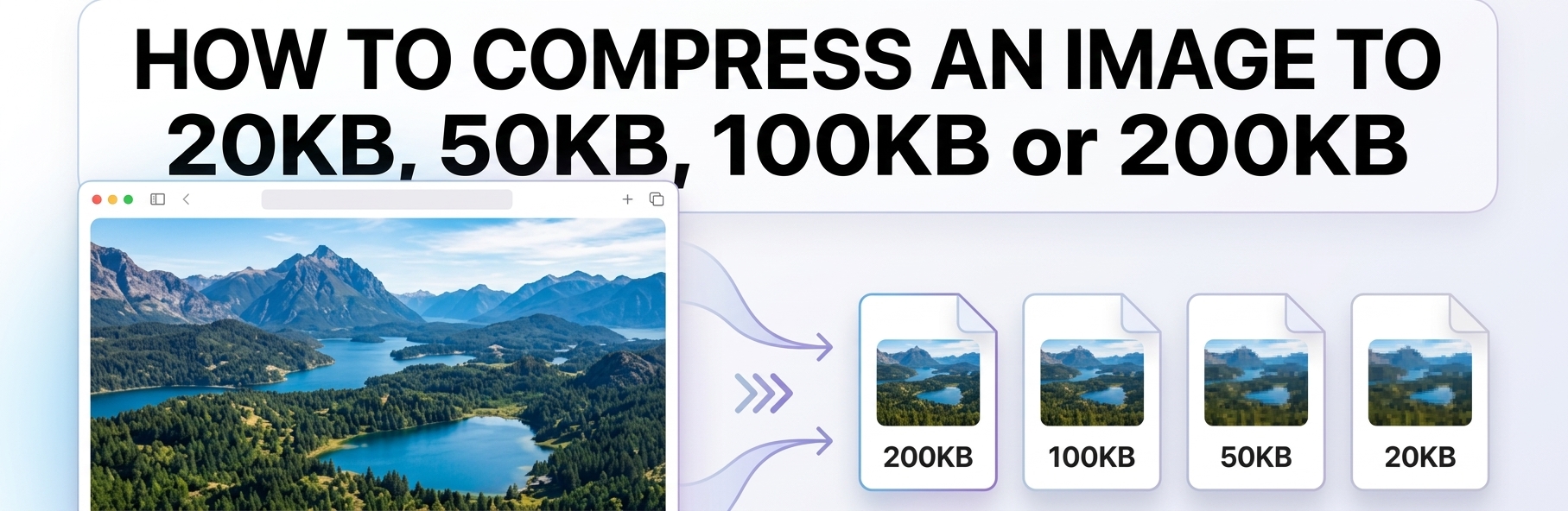
Compress Image to 20KB, 50KB, 100KB or 200KB Online – Free Tool

Need to reduce an image to a specific file size? Whether a website requires a photo under 20KB, 50KB, 100KB, or 200KB, choosing the right compression level can be difficult.
With the free ZUQREN Image Compressor, you can quickly reduce the file size of JPG and PNG images online without installing software. The tool is designed to make images easier to upload, share, store, and use on websites.
Whether you need to compress an image to 20KB, reduce a photo to 50KB, compress JPG to 100KB, or make a PNG smaller than 200KB, the process is simple.
Upload your image, choose the appropriate compression settings, and download the optimized file.
Compress an Image to a Specific Size Online
Different websites and online forms often impose strict file-size limits. A government application, job portal, educational platform, profile page, or online service may require an image to stay below a specific size.
Common requirements include:
- Compress image to 20KB
- Compress image to 50KB
- Compress image to 100KB
- Compress image to 200KB
- Compress JPG to 100KB
- Compress PNG to 200KB
- Reduce image size below 100KB
- Compress image online
The best approach is to use the largest file size that still satisfies the upload requirement. If a website allows images up to 100KB, for example, there is usually no reason to reduce the image all the way to 20KB.
You can start with the ZUQREN Image Compressor and create a smaller version of your image for the specific purpose you need.
How to Compress an Image to 20KB, 50KB, 100KB, or 200KB
The process of reducing an image is straightforward:
- Open the online image compressor.
- Select the image you want to optimize.
- Choose your desired compression settings.
- Compress the image.
- Check the resulting file size and image quality.
- Download the optimized image.
For very small targets such as 20KB or 50KB, you may need to reduce the image dimensions as well as its quality.
If you need to change the width or height of an image first, you can use the ZUQREN Image Resizer.
For the best visual quality, always start with the original image rather than repeatedly compressing an already compressed copy.
Compress Image to 20KB
A 20KB image is extremely small and is generally intended for situations where an online service imposes a very strict file-size limit.
You may need a 20KB image for:
- Online application forms
- Small profile photographs
- Digital signatures
- Identification photos
- Website icons
- Small thumbnails
- Lightweight documents
- Online registration systems
Because 20KB provides very little room for image data, detailed photographs may lose noticeable quality. Large images may also need to be resized before compression.
For example, a high-resolution photograph containing many details may be difficult to reduce to 20KB while remaining sharp. A simple logo, signature, icon, or low-resolution image can usually achieve a much better result at this size.
Tips for Creating a 20KB Image
If your image is still too large:
- Reduce its dimensions.
- Use JPG for photographs.
- Crop unnecessary areas.
- Remove unnecessary metadata.
- Avoid excessive image detail.
- Use a simple background where possible.
If you need to resize the image before compression, use the online Image Resizer.
Remember that a 20KB image is primarily suitable for online use. It is generally not appropriate for high-quality printing.
Compress Image to 50KB
A 50KB target provides more space for image information than 20KB while remaining small enough for many online upload requirements.
You may want to compress an image to 50KB for:
- Profile pictures
- Application forms
- Signatures
- Small document images
- Website thumbnails
- Educational platforms
- Online registrations
To create a 50KB image, start with the original file and compress it gradually. If the image is very large, resizing it first can help preserve better visual quality.
For images containing text, pay particular attention to readability. Aggressive compression can make small letters, thin lines, and fine details difficult to see.
Compress Image to 100KB
Compress image to 100KB is a common requirement for websites, applications, forms, profile photos, and document uploads.
A 100KB image can often provide a useful balance between file size and visual quality, particularly when the original image has reasonable dimensions.
You can use the ZUQREN Image Compressor to reduce your image size online.
If a website states that your file must be less than 100KB, it is safer to leave a small margin instead of trying to produce a file exactly at 100KB.
For example, a target around 90KB–98KB can help reduce the risk of exceeding the website's limit due to differences in how file sizes are calculated.
Compress JPG to 100KB
JPG is particularly effective for photographs because it uses lossy compression to reduce file size.
To compress JPG to 100KB:
- Select your JPG image.
- Open the online image compressor.
- Compress the image.
- Check the final file size.
- Review the image for visible artifacts.
- Download the result.
JPG is usually a good choice for:
- Portraits
- Travel photos
- Product photographs
- Website images
- Social media images
- Color photographs
If the image contains transparency, JPG is not appropriate because JPG does not support transparent backgrounds.
Compress Image to 200KB
A 200KB target provides considerably more space for image detail than 20KB, 50KB, or 100KB.
It can be useful for:
- Website images
- Blog images
- Product photos
- Profile pictures
- Online forms
- Educational platforms
- Email attachments
- General web content
If your website allows an image up to 200KB, using a target close to that limit can often provide better quality than aggressively compressing the image to 50KB.
The goal should not simply be to create the smallest possible file. The goal is to create the smallest practical file that still looks good.
Compress PNG to 200KB
PNG is useful for images that require transparency, sharp edges, text, logos, icons, and illustrations.
However, PNG can be considerably larger than JPG when used for photographs.
If you need to compress PNG to 200KB, try compressing the PNG first. If the image is actually a photograph and transparency is not required, converting it to JPG may produce a significantly smaller file.
You can use the PNG to JPG Converter from ZUQREN when converting PNG photographs to JPG makes sense.
If you need a modern web format, ZUQREN also provides a PNG to WebP Converter.
What Is the Best Image Format for Compression?
The best image format depends on the type of image and how you plan to use it.
JPG
JPG is generally a strong choice for photographs and complex images.
Use JPG when:
- You are compressing a photograph.
- You do not need transparency.
- You need a relatively small file.
- The image will mainly be viewed online.
PNG
PNG is useful for graphics where sharp edges, text, or transparency are important.
Use PNG when:
- You need a transparent background.
- The image contains logos or icons.
- The image contains sharp text or lines.
- Lossless image quality is important.
WebP
WebP can provide an efficient balance between image quality and file size and is widely used for modern websites.
Use WebP when:
- The destination supports WebP.
- You want a modern web-friendly format.
- You need efficient image compression.
- Transparency or good visual quality is required.
You can convert images with ZUQREN's PNG to WebP Converter.
Should You Compress or Resize an Image?
Compression and resizing are different processes.
Compression reduces the amount of data stored in the image file.
Resizing changes the image dimensions, such as reducing an image from 4000 × 3000 pixels to 1200 × 900 pixels.
For very large images, resizing can make a significant difference.
For example, if you have a 5000-pixel-wide photograph that will only appear as a small image on a website, keeping the original dimensions may be unnecessary.
In that situation, resizing the image first and then compressing it can produce a better balance between quality and file size.
Use the ZUQREN Image Resizer when you need to change image dimensions.
How Does Image Compression Work?
Image compression reduces the amount of data required to store an image.
There are two main approaches: lossy compression and lossless compression.
Lossy Compression
Lossy compression removes some image information to achieve a smaller file size.
JPG is a common example.
At moderate compression levels, the visual difference may be difficult to notice. However, excessive compression can produce:
- Blurry details
- Blocky areas
- Visible artifacts
- Loss of sharpness
- Reduced text readability
Lossy compression is often very effective for photographs.
Lossless Compression
Lossless compression reduces file size without permanently removing the original image information.
PNG commonly uses lossless compression.
The advantage is that the image data can be preserved, but the reduction in file size may be limited, especially for complex photographs.
Resizing
Resizing changes the number of pixels in the image.
Reducing an image's dimensions can dramatically reduce the amount of data that needs to be stored, particularly when the original image is very large.
For this reason, an effective image optimization process may combine:
- Resizing
- Compression
- Format selection
- Quality optimization
- Metadata removal
Reduce Image Size to a Specific KB
Many people do not simply want to "compress an image." They need to meet a specific upload requirement.
For example:
"My application only accepts images below 100KB."
In that case, manually changing a quality slider can require trial and error.
A target-size workflow is more convenient because you can work toward a specific limit rather than guessing the correct quality percentage.
The final file size can depend on:
- Original dimensions
- Image format
- Number of colors
- Image complexity
- Compression settings
- Metadata
- Transparency
- Amount of fine detail
This is why two photographs with the same dimensions can produce very different compressed file sizes.
Image Compressor Under 100KB
If you need an image compressor under 100KB, it is generally better to leave a small safety margin.
For example, if the maximum allowed size is 100KB, targeting approximately 90KB–98KB can be safer than targeting exactly 100KB.
If the result is still too large, consider:
- Reducing the image dimensions.
- Using JPG for photographs.
- Removing unnecessary metadata.
- Cropping unnecessary areas.
- Reducing compression quality gradually.
Do not automatically choose the smallest possible file size. If the website accepts 100KB, a 95KB image may be much better than a 20KB image.
Why Is My Image Still Larger Than 100KB?
Several factors can cause an image to remain larger than expected.
1. The image dimensions are very large
A high-resolution photograph contains a large number of pixels.
2. The image contains many details
Complex photographs, textures, trees, crowds, and detailed backgrounds are generally harder to compress efficiently.
3. The format is not appropriate
A photograph saved as PNG can be much larger than the same photograph saved as JPG.
4. The image contains transparency
Transparency can affect file size, particularly in PNG images.
5. Compression is not aggressive enough
Higher quality settings generally produce larger files.
If you need to reduce the dimensions, use the ZUQREN Image Resizer before compressing.
How to Compress Images Without Losing Noticeable Quality
You cannot guarantee zero quality loss when reducing an image dramatically, especially when targeting extremely small sizes such as 20KB.
However, you can often achieve a result that looks very close to the original.
Start With the Original
Always keep a high-quality original file.
Create compressed copies rather than repeatedly compressing the same file.
Choose the Right Format
Use JPG for most photographs, PNG for transparency and sharp graphics, and WebP when supported.
Resize When Necessary
If the original image is much larger than the size at which it will actually be displayed, resize it first.
Choose the Largest Acceptable Target
If the limit is 200KB, there is usually no reason to force the image down to 50KB.
A larger file within the allowed limit can preserve significantly more detail.
Preview the Result
Always check:
- Faces
- Text
- Logos
- Edges
- Fine details
- Backgrounds
before uploading the compressed image.
Why Compress Images for Websites?
Large images can consume more bandwidth and take longer to load.
Optimizing images can help reduce:
- Page load time
- Bandwidth consumption
- Storage requirements
- Image download time
- Mobile data usage
Image optimization is particularly useful for:
- Blogs
- Online stores
- Portfolios
- News websites
- Landing pages
- Business websites
However, file size should always be balanced against visual quality.
A very small image is not necessarily a better image if visitors can clearly see compression artifacts or blurry details.
Other Useful Image Tools From ZUQREN
If you work with images regularly, ZUQREN provides several related tools that can complement image compression.
Image Resizer
Need to change the width or height of an image?
Use the Image Resizer to set new dimensions while maintaining the desired aspect ratio.
PNG to JPG Converter
If you have a photographic PNG and do not need transparency, converting it to JPG can often help reduce the file size.
Try the PNG to JPG Converter.
JPG to PNG Converter
If you need PNG format for transparency or graphic elements, use the JPG to PNG Converter.
PNG to WebP Converter
For websites that support WebP, converting PNG images to WebP can provide an efficient modern format.
Try the PNG to WebP Converter.
You can also explore the complete ZUQREN Image Tools collection for more image conversion and optimization utilities.
How to Compress Images on a Mobile Phone
You do not need a desktop computer to compress an image.
The process can be completed from a mobile browser:
- Open the ZUQREN Image Compressor.
- Select an image from your phone.
- Compress the image.
- Check the resulting file.
- Download the optimized version.
- Locate the file in your Downloads or browser downloads folder.
This can be useful when an online application or website rejects a photo because it exceeds its file-size limit.
For better results, start with the original photograph rather than taking a screenshot of it.
How to Compress an Image for an Online Form
Before compressing an image for an online form, check the website's requirements.
Look for:
- Maximum file size
- Accepted formats
- Maximum dimensions
- Minimum dimensions
- Required aspect ratio
- Background requirements
- Color requirements
If the website says the image must be under 100KB, creating a file around 90KB–98KB provides some extra margin.
If the requirement is 200KB or less, a file around 180KB–195KB may preserve more quality than an extremely small file.
Always keep the original image separately in case you need it later.
How to Compress a Photo for Email
Compressing images before sending them by email can make attachments smaller and easier to upload and download.
For ordinary online viewing, a 100KB or 200KB image may be sufficient in many situations.
If you are sending several photographs, reducing each image can significantly decrease the total attachment size.
However, if the recipient needs to print the photograph, avoid aggressive compression. Keep a high-resolution version for printing.
How to Compress Images for Social Media
Many social media platforms automatically resize and recompress uploaded images.
Starting with an appropriately sized and optimized image can reduce upload time and unnecessary processing.
Before uploading:
- Crop the image appropriately.
- Resize very large photographs.
- Use JPG for most photographs.
- Avoid excessive compression.
- Keep the original image as a backup.
The ideal file size depends on the platform and the type of content. A 100KB or 200KB image may be suitable for some small images and previews, but larger files may be necessary for high-quality visual content.
Common Image Compression Problems
The Image Looks Blurry
The target size may be too small for the amount of detail in the original image.
Try using a larger target size or reducing the dimensions moderately.
The File Is Still Too Large
Try:
- Resizing the image
- Using JPG for photographs
- Reducing quality gradually
- Converting an unnecessary PNG photograph to JPG
- Cropping unnecessary areas
Text Becomes Difficult to Read
Screenshots and document images often contain sharp text.
For these images, avoid excessive JPG compression. PNG may be more suitable when readability is important.
The Website Rejects the Image
Check both the file size and format.
A website may require:
- JPG instead of PNG
- A maximum file size
- Specific dimensions
- A particular aspect ratio
If the limit is 100KB, create a file comfortably below 100KB.
Transparency Disappears
JPG does not support transparency.
If transparency is required, keep the image in PNG or use WebP if the destination supports transparent WebP images.
Frequently Asked Questions
How can I compress an image to 20KB online?
Upload your image to the ZUQREN Image Compressor and compress it to a very small file size. Images with large dimensions or lots of detail may also need to be resized.
Can I compress a JPG image to 50KB?
Yes. JPG is particularly suitable for photographs because it can achieve significant file-size reductions while maintaining reasonable visual quality.
How do I compress JPG to 100KB?
Use the ZUQREN Image Compressor to reduce the JPG file size. If the requirement is strictly below 100KB, leave a small safety margin rather than aiming for exactly 100KB.
How do I compress PNG to 200KB?
Compress the PNG and check the final file size. If the PNG is a photograph and transparency is not required, consider converting it to JPG with the PNG to JPG Converter.
Can I compress an image without losing quality?
Some degree of quality reduction may occur when significantly reducing file size. However, choosing the correct format, resizing appropriately, and avoiding excessive compression can preserve most visible quality.
What is the difference between compressing and resizing an image?
Compression reduces the amount of data stored in the file, while resizing changes the image dimensions. Both can reduce file size and are often used together.
Is JPG smaller than PNG?
For most photographs, JPG is generally smaller than PNG. PNG is often preferable for transparency, logos, screenshots, and graphics with sharp edges.
Why should I choose 95KB instead of 100KB?
If a website has a maximum limit of 100KB, a file slightly below the limit provides a safety margin and reduces the chance that the upload will be rejected for exceeding the limit.
Can I compress images on an iPhone or Android phone?
Yes. You can open the online compressor from a mobile browser, select your image, compress it, and download the resulting file.
Will compression reduce image dimensions?
Compression itself does not necessarily change dimensions. However, reducing dimensions can be an effective way to achieve a much smaller file size, especially for large photographs.
Use the ZUQREN Image Resizer if you need to change the width or height.
Which target size should I choose?
Choose the largest file size allowed by the destination.
For example, if the maximum is 100KB, a target around 90KB–98KB may provide a good balance between compliance and image quality.
Can I compress multiple images?
Batch processing depends on the capabilities of the image compressor. If batch compression is not available, process the images individually and save the optimized versions separately.
Is an image under 100KB suitable for a website?
It can be. Smaller images can reduce bandwidth usage and load faster, but the appropriate size depends on the image dimensions, purpose, and required visual quality.
What should I do if my compressed image looks blurry?
Try a larger target size, reduce the dimensions moderately, use a more suitable format, or crop unnecessary areas.
Extremely small targets such as 20KB may simply be too restrictive for detailed photographs.
Best Practices for Image Compression
Keep your original high-quality images in a separate folder.
Create compressed copies for specific purposes rather than permanently replacing your originals.
Useful file names include:
passport-photo-100kb.jpg
product-image-200kb.jpg
signature-50kb.png
profile-picture-20kb.jpg
Descriptive file names make files easier to organize and can provide useful context when images are used on websites.
However, avoid adding unrelated keywords just for SEO. File names should accurately describe the image.
Before uploading an image, always check:
- File size
- File format
- Dimensions
- Visual quality
- Text readability
- Transparency requirements
A smaller file is useful only if it still meets the requirements of the website or application where it will be used.
Conclusion
Compressing an image to a specific file size is useful when a website, application, or online service imposes a strict upload limit.
With the ZUQREN Image Compressor, you can optimize images online without installing desktop software.
Whether you need to compress an image to 20KB, 50KB, 100KB, or 200KB, the best approach is to choose the largest file size that meets the requirement while preserving as much visual quality as possible.
For photographs, JPG is often a practical choice. PNG is useful for transparency, logos, screenshots, and sharp graphics, while WebP can be an efficient option for compatible websites.
If your image is still too large, consider reducing its dimensions with the ZUQREN Image Resizer or converting it to a more appropriate format using ZUQREN's image conversion tools.
Upload your image, optimize it, and create a smaller file ready for your website, application, form, email, or online platform.
Explore more free ZUQREN Image Tools to compress, resize, convert, and optimize your images online.